

Move Files to PC in 4 Steps with iPhone Data Transfer Software
It’s really annoying when the storage space on an iPhone runs out. You’ll receive warnings about insufficient storage, and you have to delete some apps; however, those warnings appear again after a week. hotos, videos and chat messages keep growing;. When you try to move them to a Windows computer the normal tools take a long time. iCloud wants to upload all the data while iTunes wants a whole backup. Even though the file explorer shows folders it gets partway through the transfer.
Therefore, before the next storage warning appears, choosing a reliable iPhone data transfer tool can save you several hours of time. The files stay on the phone. The issue is how to move them in a way that works. Using USB lets you skip the cloud and pick the files you want. With the tool the whole process takes just a few minutes, not hours.
Before starting actual testing, let’s first understand what causes errors during the transfer from iPhone to computer.
Why iPhone Data Transfer to PC Goes Wrong?
There are several common reasons for this; most of them are due to the use of synchronization tools for exporting files.
iCloud is designed for synchronization, not for selective export. It includes every file in your 5GB free storage space, and you need to download all those files again on your computer.
iTunes is meant for complete backups. Extracting a photo album or a month’s worth of videos is very complicated. File Explorer can also cause problems – screen locking, sleep settings, or temporary driver issues can all lead to failures during long-term copying tasks.
HEIC photos remain confusing in Windows systems; many applications cannot open them directly, and they must be converted manually before they can be used.
WhatsApp’s media files are stored inside the app itself. Large video files from conversations cannot be directly moved into the DCIM folder.
Cloud storage costs accumulate over time. The free plan runs out quickly, and large files quickly consume the storage available in the paid plan.
When storage is about to run out it is important to act. Move the files you need before the phone starts deleting cache or not taking photos.
Easy & Fast iPhone Data Transfer Software – FoneTool
When the goal is to transfer selected files from an iPhone to a PC, without having to use the cloud for transmission, specialized tools can play a crucial role. The preferred tool we recommend is FoneTool. This tool treats the iPhone as a device that can be accessed via USB; thus, you can choose either categories of files or individual files, and specify a folder on the computer for storage.
- Selective transfer: Lets you choose photos, music, videos, contacts, messages and ringtones by category or individually.
- Fast USB transfer speed: Testing showed that moving 100 high-quality photos took 3 seconds; moving 3,000 photos took around 6 minutes..
- HEIC to JPG conversion: Files can be converted in bulk during the transfer process, and they can be opened directly in Windows applications.
- WhatsApp manager: Allows backing up chat media to the local device, with video files being extracted separately.
- Stable connection: Screen lock does not interrupt the transfer process.
- Works with Windows 10/11: Compatible with latest iPhone models and iOS versions.
If your main goal is simply to transfer data from an iPhone to a computer for editing, archiving, or freeing up space, then FoneTool is exactly what you need.
4 Steps to Transfer iPhone Data to PC with FoneTool
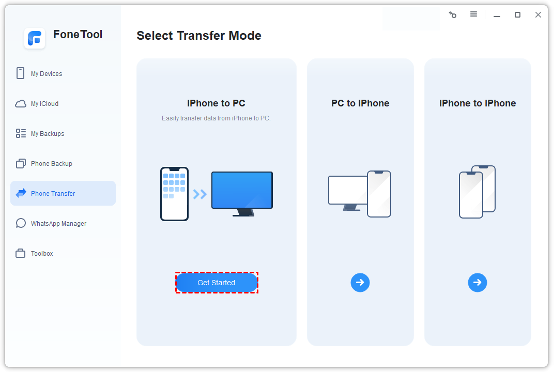
Step 1. Download and install FoneTool on a Windows computer. Connect your iPhone to the computer, then click “Trust” on the phone screen. On the main interface, select “Phone Transfer”, choose “iPhone to PC”, and then click “Get Started”.
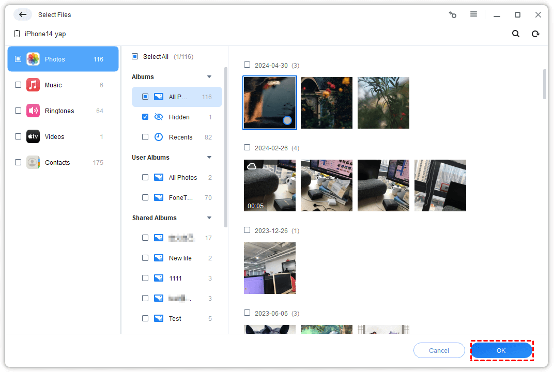
Step 2. Check the categories you need. Open “Photos” to select specific albums; if you only want media files, do not check options such as “Contacts”.
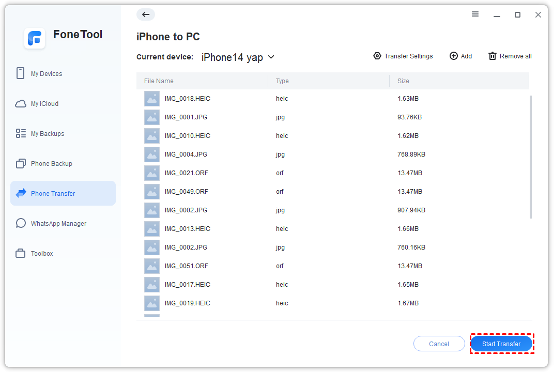
Step 3. Choose the format for the photos (use JPG, JPEG or PNG of HEIC). Pick a folder on the disk making sure there is room in that folder.
Step 4. Click “Start Transfer” and wait until the progress bar finishes. Check the folder to make sure the files open properly.
Tips:
- Using the preview window helps avoid duplicating files or accidentally transferring personal files.
- For chat media, open WhatsApp Manager and select “Videos”. This is the fastest way to transfer WhatsApp videos from iPhone to PC, without needing to back up years’ worth of chat messages.
Final Word
When the storage space on an iPhone becomes full, it can be stressful. However, losing files due to transmission failures is even worse. Whether you are setting up a new computer, preparing to resell a phone, or clearing space before traveling, it’s important to take action as soon as storage issues arise, and move the necessary files away from there. According to our tests, FoneTool is the reliable choice for transferring files from iPhones to PCs – just connect, select, and choose the folder, and it’s done.