

Best Windows File Recovery Software Recover Files in 4 Steps
Losing a file on Windows feels like a small heart attack. One wrong delete, a rushed format, or a sudden power cut, and years of photos or a critical work report seem to vanish for good. That is exactly why picking the best Windows file recovery software before panic sets in can save your day.
NTFS and exFAT label it as ‘free’ on your space when you hit delete. But the real files and data are still sitting right there on the disk till something else is written to the space. That little gap is your window to get your files back. Get yourself a powerful Windows file recovery tool, and it can get your data back before it’s gone for good.”
Before we dive into the hands-on test, let’s look at why files disappear in the first place.
Why Files Get Lost on Windows 11/10?
There are many reasons for losing data and we list the main reasons:
- Accidental deletion: Emptying the Recycle Bin or hitting Shift+Delete removes the pointer, not the real data. You can learn how to recover Shift deleted files.
- Formatting and reinstalling: A quick format wipes the file table but leaves most data clusters physically intact.
- File system corruption: Sudden crashes or bad sectors can make a healthy drive into a RAW, unreadable state.
- Partition loss: A botched DiskPart command or a faulty Windows update can corrupt an entire drive.
Act fast. Stop writing anything to the affected disk immediately so recoverable sectors are not overwritten before a scan.
Best Windows File Recovery Software — MyRecover
When the stakes are high, a professional Windows data recovery software makes the difference between a full rescue and permanent loss. Our top pick is MyRecover, which we tested hands-on (see results below).
- Quick & Deep Scan: One-click scanning with both Quick and Deep recovery modes.
- 1,000+ file types: MyRecover supports 1,000+ file types, including documents, excels, videos, photos, archives, audio, and many more.
- 500+ devices: You can recovers from many devices, including HDD, SSD, USB drives, SD cards, lost partitions, etc.
- Free recovery of up to 500 MB, with no sign-up required.
- Clean, wizard-style interface tuned for Windows 11/10/8.1/8/7/Vista/Server 2022/ Server 2019/ Server 2016/ Server 2012 (R2)/ Server 2008 (R2) users.
4 Steps to Recover Deleted Files in Windows 11 with MyRecover
Important Note: Connect the storage device before launching the app, and never save recovered files back onto the same disk you are scanning.
Step 1. Download MyRecover latest version on your Windows 11 PC, then connect the affected device (USB, SD card, or external HDD) if required.
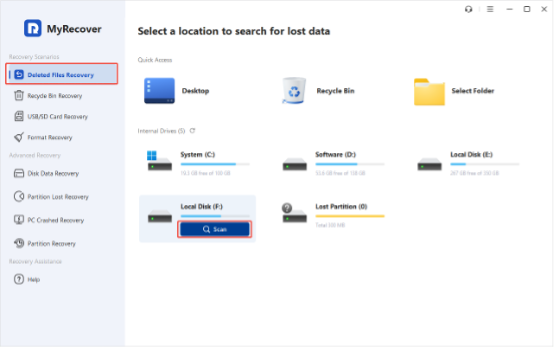
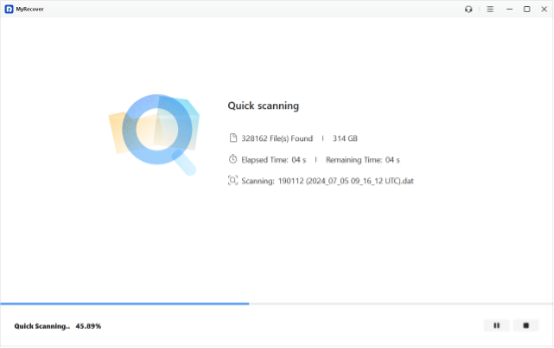
Step 2. Open MyRecover, choose Deleted Files Recovery, select the target drive, hover over it, and click Scan to perform a quick scan. It will automatically switch to Deep Scan for formatted or RAW media.
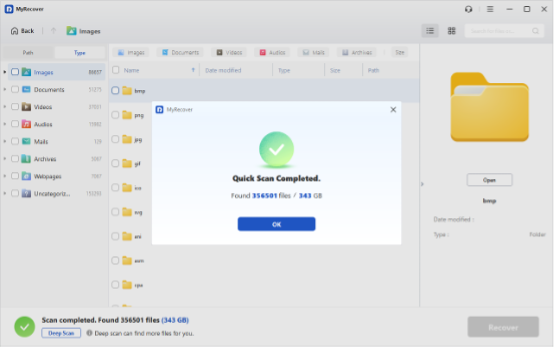
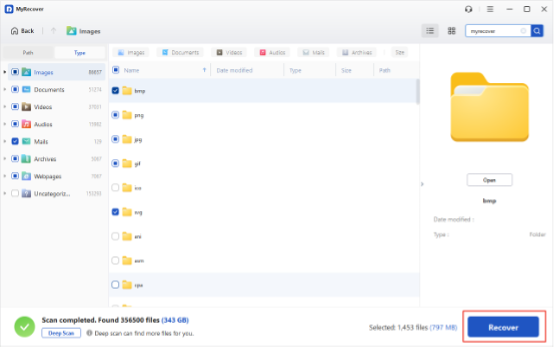
Step 3. Select files by file type or folder path, and tick only the files you need, and hit Recover.
Step 4. Choose a safe destination folder on a different drive, and you are done.
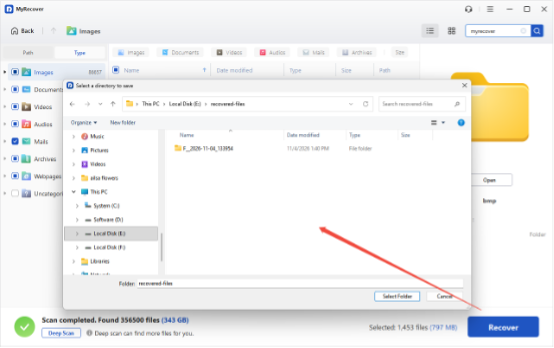
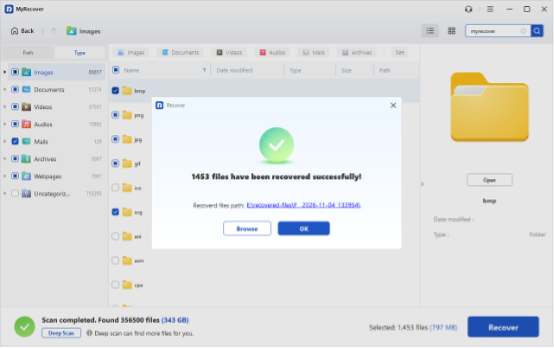
Wait for a minute, you will find the recovery process is completed, check all the recovered files in the destination for integrity.
Tips:
- Use the search box to locate specific extensions;
- Upgrade to MyRecover Professional only if you exceed the free 500 MB quota.
MyRecover v5.4.0 — Hands-On Test Results
We ran a real-world trial on a Windows 11 machine. Test environment:
| Item | Detail |
| Author | Delores |
| Software Version | MyRecover v5.4.0 |
| Operating System | Windows 11 Pro (25H2) |
| Test Date | October 4, 2026 |
| Drive | HDD, F drive, 581GB (236GB free) |
After our testing, here is how the free Windows file recovery tool in Windows 11 performed:
| Item | What I saw |
| Drive scanned | Local Disk (F:), 581GB, drive type: HDD |
| Quick Scan result | The scan-complete window reported 356501 files (343 GB) found |
| Quick Scan time | A few seconds |
| Files selected for recovery | 1453 files (797 MB) |
| Recovery Time | Less than a minute |
| Saved to | Local Disk (E:), a different drive from the one scanned |
| File types to recover | zip, m4a, mp3, xlsx, pdf, pptx, rtf, txt, docx |
| Recovery rate | 100% |
| Files that opened correctly | zip, m4a, mp3, xlsx, pdf, pptx, rtf, txt, docx |
MyRecover is very easy to use and provides the highest recovery rate in the market, which is your best Windows file recovery software in Windows 11, 10, 8.1, 8, 7 and more.
Other Free Windows File Recovery Software (Pros & Cons)
No single tool fits every situation. Below is how the most popular free file recovery software options compare, including MyRecover’s own strengths and limits.
Windows File Recovery (Microsoft)
- Pros: 100% free, official Microsoft utility, supports NTFS / FAT / exFAT / ReFS.
- Cons: Command-line only, steep learning curve, no file preview, easy to mistype syntax.
PhotoRec
- Pros: Free, open-source, excellent for photos and videos across many file systems.
- Cons: Recovers by content only (no original filenames or folders), text-based interface.
MyRecover
- Pros: 99%+ tested recovery rate, intuitive wizard UI, 500 MB free, optimized for all Windows systems (including Windows 11). Supports NTFS / FAT 16 / FAT 32 / exFAT.
- Cons: Free tier capped at 500 MB; full features require a paid license (include full file preview, etc.).
For most home users, a dedicated Windows file recovery tool in Windows 11 like MyRecover balances speed, safety, and success rate far better than the free CLI alternatives.
Conclusion
Losing files can be stressful. Whether you need free file recovery software in Windows 11 for a single deleted photo or enterprise-grade Windows data recovery software for a failed array, act quickly and recover before it’s too late. Based on our test of MyRecover v5.4.0, it is a dependable first choice — and you can follow the full guide to recover deleted downloads on PC as your next step.