How Smartphone Storage Fills Up So Fast Explained
Smartphone storage fills up fast because modern devices save far more than the files users can easily see. Photos, videos, app downloads, cached data, offline content, software updates, and system files all compete for limited space. Even when only a few apps are installed, background processes and temporary files continue growing quietly. Messaging apps also store shared images, voice notes, and videos automatically. As a result, available space shrinks much faster than expected. Understanding where storage goes makes it easier to prevent slowdowns, failed downloads, and constant low-space warnings.
Hidden App Data and Background Storage
Apps, Cache, and Background Files
Apps use storage in layers. The initial download is only part of the total size, because apps also create cache, saved settings, login data, thumbnails, and offline files. Streaming, shopping, map, and social apps often store background content to load faster later. Over time, that hidden data can become much larger than the app itself. Even apps used occasionally may keep collecting temporary files. This is one of the main reasons smartphone storage fills up so quickly without obvious large files appearing.
System Data and Residual Files
System data also takes space that users cannot always manage directly. Phones store logs, crash reports, indexing data, security files, and temporary processing records to keep the device stable and responsive. When apps are updated or removed, residual files may remain behind, especially downloaded assets and configuration fragments. These leftovers are small individually but large in total over months of use. That is why storage can stay surprisingly full even after deleting apps, photos, or downloads that seem like the biggest space users.
Media Files and User Content Growth
Photos and Videos Over Time
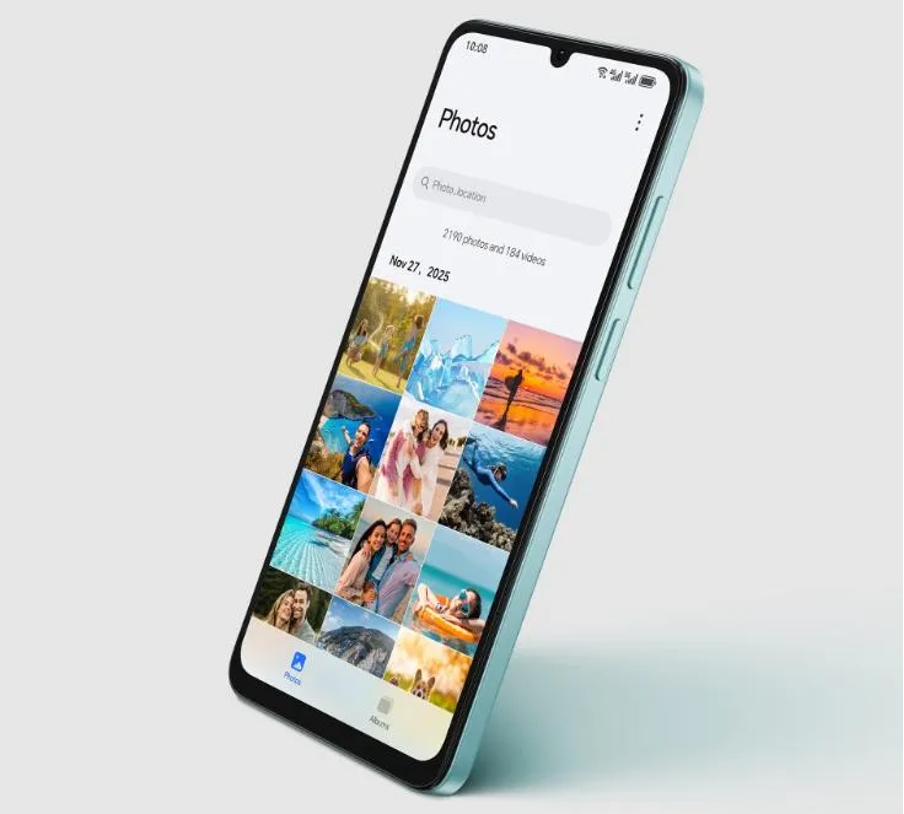
Photos and videos are among the fastest-growing storage categories on any phone. Camera quality has improved, so each image and clip now uses more space than older files. Burst shots, screenshots, edited copies, and duplicate downloads add up quickly. Short videos recorded in high resolution can consume hundreds of megabytes within minutes. A device such as the HONOR X6d 5G offers 256GB of PC-grade storage, enough for 56,800 or more photos, and supports up to 1TB MicroSD card expansion for additional media capacity.

Downloads and Messaging Media
Downloaded documents, PDFs, music, videos, and app installation files often remain on a phone long after they are needed. Messaging apps increase the problem by automatically saving shared photos, stickers, voice notes, GIFs, and forwarded videos into local storage. Group chats can generate large media libraries quickly, especially when auto-download is enabled. Because these files arrive gradually, they are easy to overlook. Many users blame the phone itself, but accumulated messaging content and forgotten downloads are often major reasons storage disappears faster than expected.
System Updates and Reserved Storage
Updates and Temporary Files
System updates need extra room before installation finishes. A phone may download a large update package, unpack it, verify it, and store temporary backup files at the same time. During that process, one update can use several layers of short-term storage. Some temporary files are removed automatically, but others may linger until the device clears them later. App updates create similar effects on a smaller scale. This explains why a phone can suddenly report less available space even when no new personal content was added recently.
Preloaded Apps and Reserved Space
Not all advertised storage is available for personal files. Part of the total capacity is reserved for the operating system, essential services, recovery tools, and built-in apps that come preinstalled. That reserved space is necessary for the phone to function properly, but it reduces what users can actually use from day one. Some preloaded apps also receive updates and store their own data over time. As a result, a phone with a large stated capacity may still feel limited if system space, defaults, and background app growth combine.
Simple Ways to Manage Storage Better
Cleaning and Organizing Data
Managing storage starts with regular cleanup. Delete duplicate photos, old screenshots, outdated downloads, and unused offline files. Review large videos first, since removing only a few can free substantial space quickly. Clear messaging media that has already been viewed or backed up elsewhere. Uninstall apps that are rarely used, then check whether leftover folders remain in file storage. Organizing files into folders also helps users spot what is growing fastest. Small monthly cleanups are more effective than waiting until the phone reaches a critical warning.
Using Built-in Storage Tools
Built-in storage tools make management easier because they show which categories consume the most space. Use the phone’s storage settings to review apps, media, downloads, cached data, and system usage in one place. Many devices also recommend files to delete, highlight duplicate images, or identify apps that have not been used recently. Checking these tools regularly helps catch storage growth before it becomes disruptive. Users who monitor storage trends can avoid failed updates, slower performance, and constant cleanup sessions caused by neglected background accumulation.
Conclusion
Smartphone storage fills up fast because space is consumed by more than visible files. Apps build cache and background data, media libraries grow steadily, downloads pile up, and system updates require temporary working room. Reserved system space also reduces the capacity available for daily use. Once these hidden factors are understood, low-storage warnings become much easier to prevent. Regular cleanup, better media habits, and consistent use of built-in storage tools can keep a phone running smoothly. Knowing where storage goes is the first step toward managing it effectively.