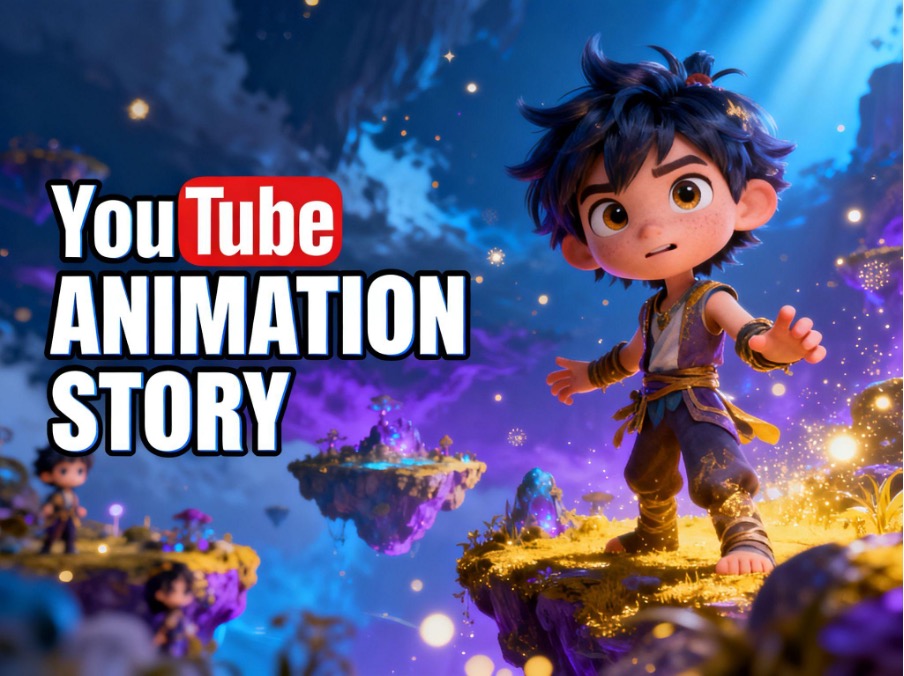
How to Make a YouTube Animation Video: A Step-by-Step Guide
Animated videos are a popular way to share stories, explain complex topics, and entertain audiences on YouTube. From educational animations and cartoon stories to product explainers, animation can help creators turn ideas into an engaging visual. With this guide, you can learn how to make a YouTube animation video step by step. Later, we’ll create a YouTube animation video with Magiclight AI before a conclusion.
1. Choose Your Animation Video Idea
Start by deciding what kind of animated video you want to create. Your topic should match your target audience and channel goals.
Popular YouTube animation formats include:
- Animated storytelling: Create fictional stories, short dramas, or character-driven series.
- Educational animation: Explain science, history, business, or other complex subjects.
- Explainer videos: Introduce products, services, or useful concepts through animated visuals.
- Cartoon entertainment: Develop original characters and entertaining scenarios.
- Documentary-style animation: Combine narration, visual sequences, and storytelling to explore real-world topics.
Choosing a specific format makes it easier to plan your script, visual style, and production workflow.
2. Write a Script for Your Video
A good script gives your animation a clear structure. Start with an opening hook that captures attention, followed by the main content and a satisfying conclusion.
- For storytelling videos, outline the main characters, setting, conflict, and resolution.
- For educational content, organize the information into logical sections and use simple language.
You can write your script manually or use AI writing tools to develop ideas and organize scenes. Before moving on, review the script to ensure the dialogue sounds natural and the story flows smoothly.
3. Create Characters and Choose a Visual Style
Visual consistency is essential for an animation channel, especially if you plan to publish a series. Choose a style that suits your content, such as 2D cartoons, 3D animation, anime, or illustrated storytelling.
Develop recognizable characters with consistent appearances, clothing, and personalities. If your video contains multiple scenes, maintaining the same character design helps viewers follow the story without visual distractions.
MagicLight AI keeps character consistency throughout the video creation process, helping creators build recognizable characters and produce continuous stories with stable visual identity.
4. Turn Your Script into Animated Scenes
Once your script and characters are ready, divide the story into scenes. Each scene should communicate one main action, idea, or moment.Select visuals that support the narration and use transitions to connect scenes naturally. Add camera movements, character actions, and background details where appropriate.
For creators who want to simplify production, MagicLight AI offers an integrated AI video creation workflow that goes beyond generating isolated clips. It combines story development, script generation, storyboarding, character creation, visual style selection, and video production in one platform.Its built-in AI storytelling capabilities can help transform a simple idea into a structured narrative.
5. Add Voiceovers, Music, and Sound Effects
Audio makes animated videos more immersive. Record your own narration or use AI voice tools to produce voiceovers. Choose background music that matches the mood, and add sound effects to emphasize important actions.
Keep background music below the narration so viewers can understand the dialogue clearly. Make sure your audio assets are licensed for your intended use, particularly if you plan to monetize your YouTube channel.
6. Edit and Export Your YouTube Animation
Review the complete video before publishing. Check scene transitions, narration timing, character consistency, and subtitle accuracy. Remove unnecessary pauses and ensure the visuals match what the narrator is saying.For standard YouTube videos, a 16:9 aspect ratio is generally recommended. Export at a suitable resolution, such as 1080p, to provide a clear viewing experience.
If you’re creating a longer educational video, documentary, or episodic story, MagicLight AI supports long video generation for projects of up to approximately 50 minutes.
7. Optimize Your Video for YouTube
Publishing is only part of the process. Optimize your video to help viewers discover it.
- Title: Include your main keyword naturally, such as “How to Make a YouTube Animation Video.”
- Thumbnail: Use a clear composition, recognizable characters, and strong visual contrast.
- Description: Explain what viewers will learn or experience, incorporating relevant keywords naturally.
- Subtitles: Add accurate captions to improve accessibility and comprehension.
- Consistency: Publish regularly and use audience retention data to improve future videos.
Avoid keyword stuffing. A useful, engaging video is more valuable than a description filled with repetitive search terms.
How to generate a YouTube animation video with Magiclight AI.
MagicLight AI stands out from traditional AI video generation tools by offering a complete AI video production system instead of simple clip generation. It combines long-form video creation, automated storytelling, consistent characters, and an end-to-end production workflow to help creators produce more complete and scalable content. Let’s generate video step by step.
Step 1. Begin Your Animation Project
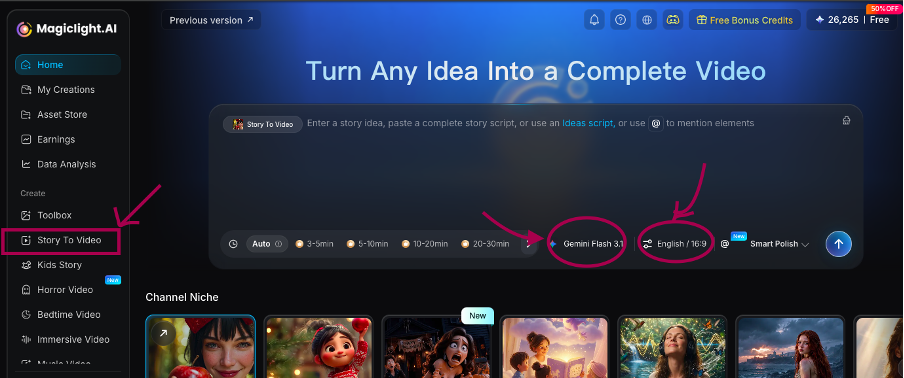
Open MagicLight AI’s Story to Video tool,and then select the aspect ratio and duration for your YouTube animation. Choose your video language, story model, and style model before input your script into the Smart Script tab for AI optimization. Click Next to start creating your animated video.
Step 2. Review AI Scene Plan
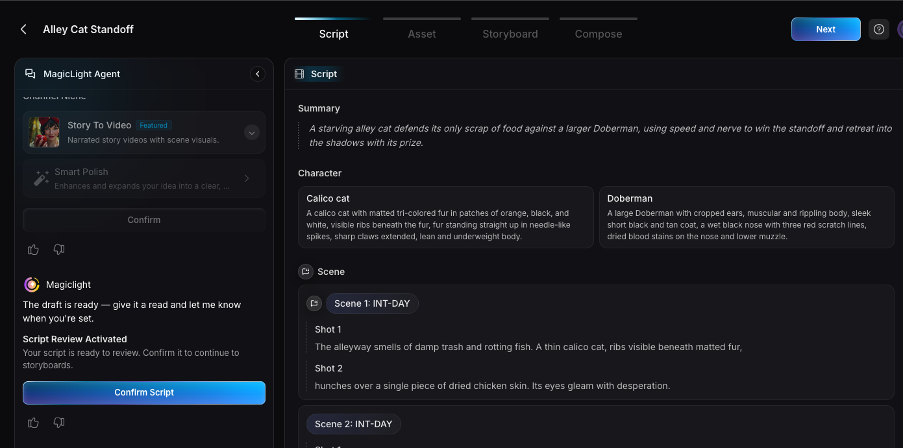
Review the AI-generated scene-by-scene summary to ensure it fits your animation idea. You can use the scene controls to adjust scenes, transitions, or timings, then click Next to continue shaping your YouTube video.
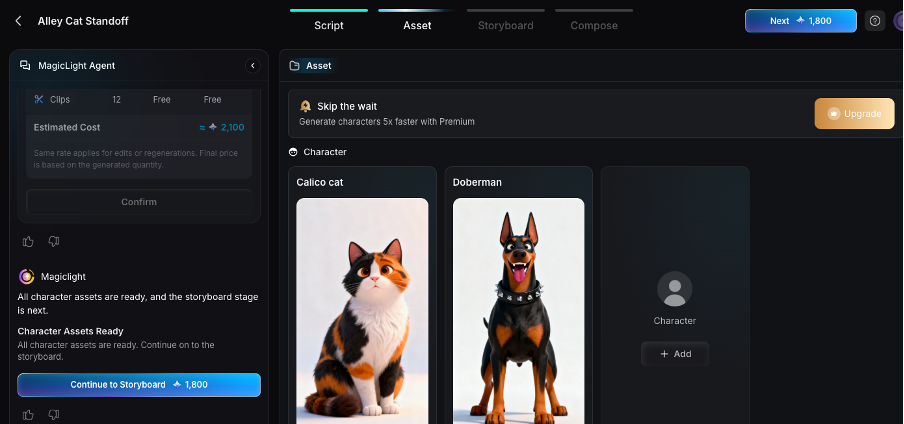
Step 3. Pick Video Characters Carefully
MagicLight AI chooses characters according to your script and recommends options. You also can browse extra characters if needed, confirm your selections, and click Next Step to bring your animation to life.
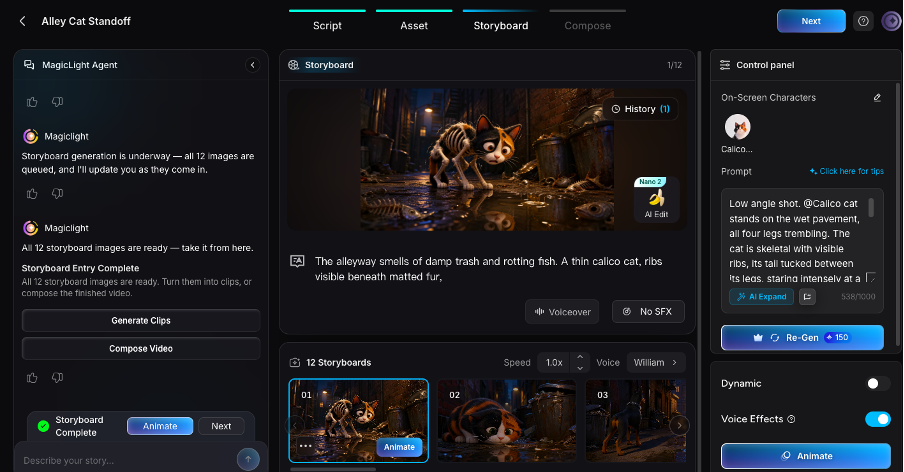
Step 4. Refine Storyboard Animations
Check each storyboard scene to ensure smooth visual storytelling. Modify character poses, expressions, and attire to match your video’s style before proceeding and press Next.
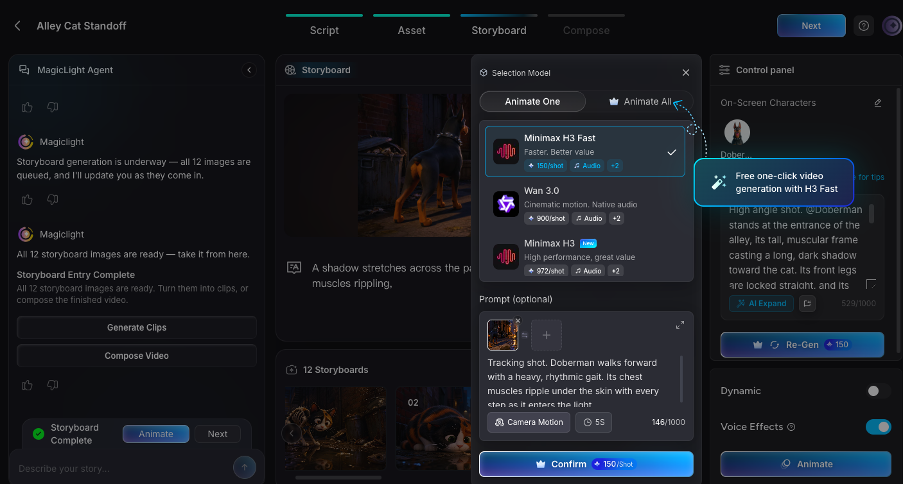
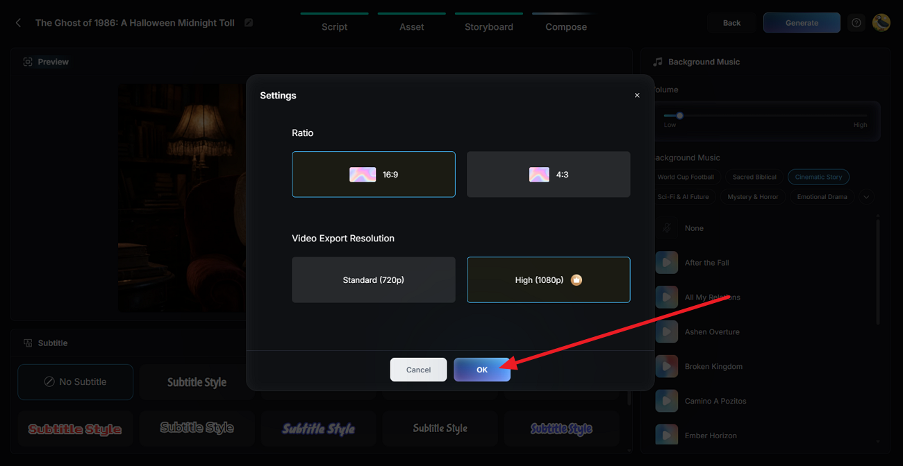
Step 5. Customize Subtitle Appearance
You need to select a subtitle style for dialogue or narration that suit your YouTube animation design. Once configured, click Generate to produce the AI-animated video.
Step 6. Review and Export
Play the generated animation to check the visuals, cover image, and thumbnail suitability for YouTube. When everything looks polished well, click Download Video to save your completed YouTube animation.
Conclusion:
Learning how to make a YouTube animation video becomes easier when you break production into manageable steps: choosing an idea, writing a script, designing characters, creating scenes, adding audio, and optimizing the final video. Traditional animation workflows can require considerable time and technical expertise. MagicLight AI offers another approach by combining automated storytelling, consistent characters, and long-form video production in one workflow. Whether you’re building an educational channel, developing an animated series, or experimenting with storytelling, choosing a workflow that matches your content goals can help you create videos more efficiently and consistently.