

How to Download a Pinterest Board: Easy Methods
Pinterest is a great place to collect ideas in one place. You may have a Board filled with travel inspiration, recipes, fashion ideas, home decoration, or creative projects.
Over time, however, a Board can contain dozens or even hundreds of Pins. If you want to keep those images, videos, or GIFs on your device, saving them one by one can take a lot of time.
So, how do you download a Pinterest Board? If you only need to save individual videos, you may also be looking for a Pinterest video download method rather than downloading an entire Board.
Pinterest does not offer a simple built-in option to download all the content from a Board at once. However, there are several ways to save Pinterest content, including using an online Pinterest Board downloader.
Can You Download an Entire Pinterest Board?
Yes, you can download content from a Pinterest Board, but the available method depends on the type of Board and the content you want to save.
Pinterest allows users to save Pins to their Boards, but saving a Pin to a Board does not automatically download the original media to your device.
If you only want one or two images, downloading individual Pins may be enough. But if you want to save a full Board with many images, videos, and GIFs, downloading each Pin separately can become repetitive.
For public Boards with 20 or more items, an online tool such as Pinpea can be used to download the entire Board at once.
Method 1: Download Pinterest Board Content With Pinpea
Pinpea lets you download images, videos, and GIFs from a public Pinterest Board using its URL, without copying each Pin link separately or installing an app.
Small Boards within its limit of just over 20 items can be downloaded in full. For larger Boards, you can save the available content and download any missing Pins separately using their individual links.
If you also save content from TikTok, SSSTikTok can be used for downloading individual TikTok videos, while a TikTok to MP3 tool can be useful when you only want to keep the audio from a video.
How to Download an Entire Pinterest Board With Pinpea
Step 1: Open the Pinterest Board
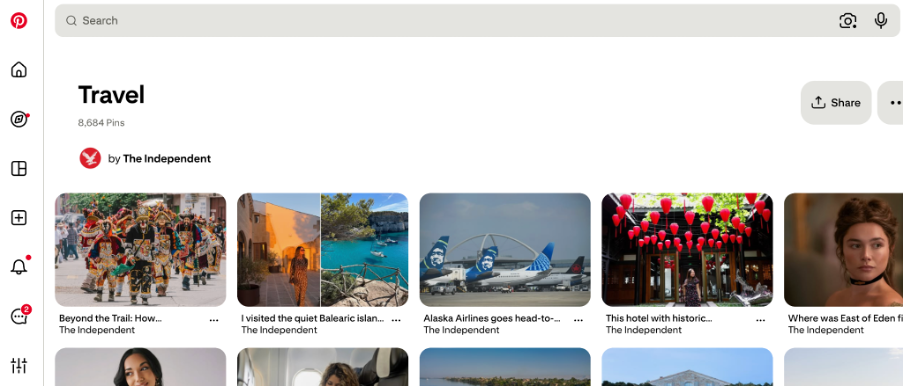
Go to Pinterest and find the public Board you want to download.
Open the Board and copy its URL from your browser’s address bar.
A typical Pinterest Board URL looks like this:
https://www.pinterest.com/username/board
Make sure the Board is public and contains at least 20 items.
Step 2: Open Pinpea
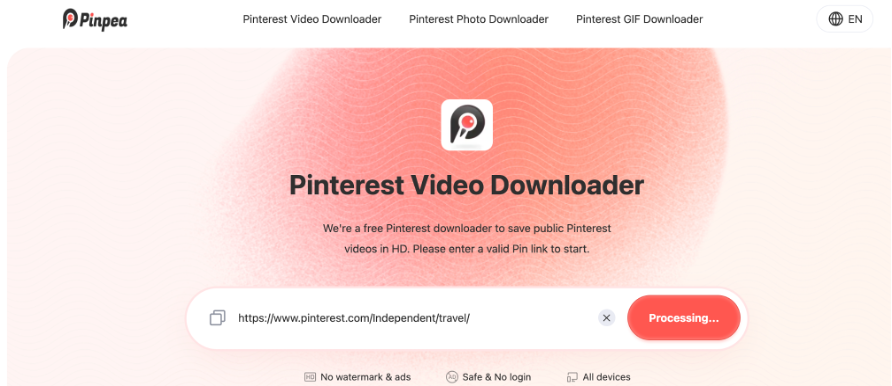
Open Pinpea in your browser and paste the Pinterest Board link into the input field.
You can use the service from a computer or mobile browser, so there is no need to install additional desktop software or a browser extension.
Step 3: Let Pinpea Process the Board
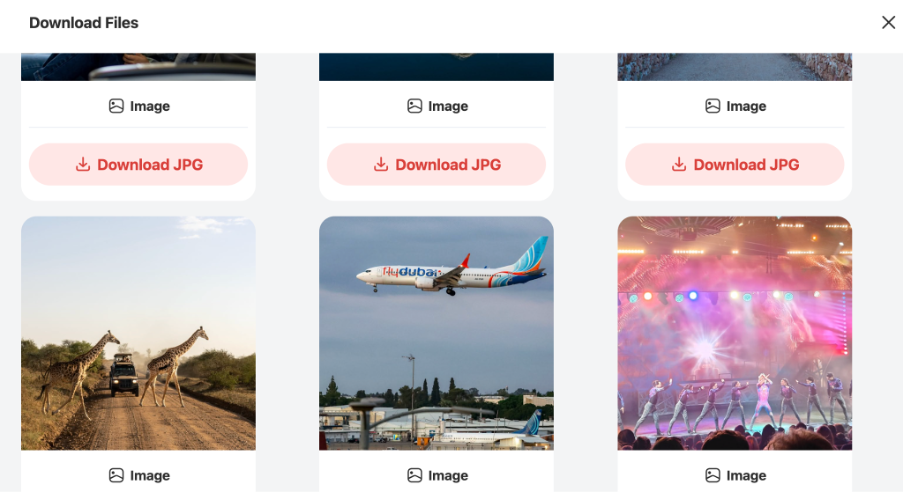
After you paste the Board URL, Pinpea will process the Board and identify the available content.
For a supported public Board, the service can process the Board as a whole rather than requiring you to submit every Pin separately.
Step 4: Download the Available Content
Once Pinpea finishes processing the link, check the results and download the available images, videos, and GIFs. You do not need to submit each Pin link separately.
For larger Boards, check whether the results include everything you need. Submitting a Board link does not guarantee that every Pin will be included.
What Pinterest Boards Does Pinpea Support?
Pinpea supports public Pinterest Board links and can download available images, videos, and GIFs from them. Board downloads were previously limited to images; videos and GIFs are now supported too.
Private or secret Boards, deleted content, and content that requires account access are not supported. For larger Boards, the results may not include every item.
Method 2: Download Individual Pins From Pinterest
If you only need a few items from a Board, you can also use Pinterest’s own download options when they are available.
Open the Board and select the Pin you want to save. Depending on the content and Pinterest’s available options, you may see a download option in the Pin menu.
This method is useful when you only need one or two images.
However, it becomes less practical when a Board contains dozens of Pins. You would need to open each Pin and repeat the download process individually.
Method 3: Save a Pinterest Board as a PDF
Another option is to save a Pinterest Board as a PDF.
This can be useful if you want to keep a visual reference of the Board rather than download every image or video as a separate file.
On a computer, open the Pinterest Board in your browser and use the browser’s print function. Select Save as PDF as the destination.
A PDF can work well for travel planning, mood boards, research, or collecting design references.
However, this method has an important limitation: a PDF is not the same as downloading the original media. You will not have separate image, video, or GIF files that you can easily access or use individually.
Method 4: Save Only Selected Pins
You may not always need to download an entire Board.
For example, imagine you have a travel Board containing 100 Pins, but only 10 of them are useful for your upcoming trip. Downloading all 100 items may be unnecessary.
In this situation, you can simply save the Pins you actually want.
Open each selected Pin and use Pinterest’s download option when available. You can also copy the individual Pin URLs and process them with an online Pinterest downloader.
This approach gives you more control over which content you keep and can save storage space on your device.
Which Pinterest Board Download Method Should You Use?
The right method depends on what you want to save.
Want to download a full public Board: Use the Board URL with a tool such as Pinpea.
Only need one or two images: Try Pinterest’s own download option when available.
Want a visual copy of a Board: Save the Board as a PDF.
Only need selected Pins: Download the individual Pins instead of the entire Board.
If the Board contains 20 or more items and you want to save different types of content, using a Board downloader can be much more convenient than processing every Pin separately.
Things to Keep in Mind Before Downloading
Before downloading Pinterest content, there are a few things worth remembering.
First, make sure the Board is public and accessible. A private or deleted Board may not be available for downloading.
Second, downloading content does not automatically give you permission to republish or commercially use it. Images, videos, and GIFs on Pinterest may belong to their original creators.
If you plan to use downloaded content outside of personal use, check the creator’s rights and obtain permission when necessary.
Finally, only download content that you have a legitimate reason to save. Using a downloader for personal reference is different from redistributing someone else’s work.
Conclusion
Downloading a Pinterest Board can be useful when you want to keep your favorite ideas offline or create a local collection of images, videos, and GIFs.
If you only need a few Pins, Pinterest’s own download options may be enough. But if you want to download a full public Board with 20 or more items, using the Board URL with a tool such as Pinpea can save you from opening and downloading every Pin individually.
Pinpea currently supports images, videos, and GIFs from supported public Boards, making it possible to handle different types of Pinterest content from the same Board.
Whether you are saving travel inspiration, recipes, design ideas, or other visual references, choosing the right method can make the process much faster and more convenient.