Remote Desktop Software vs. Cloud Computing: Which Offers More Flexibility for Remote Teams?
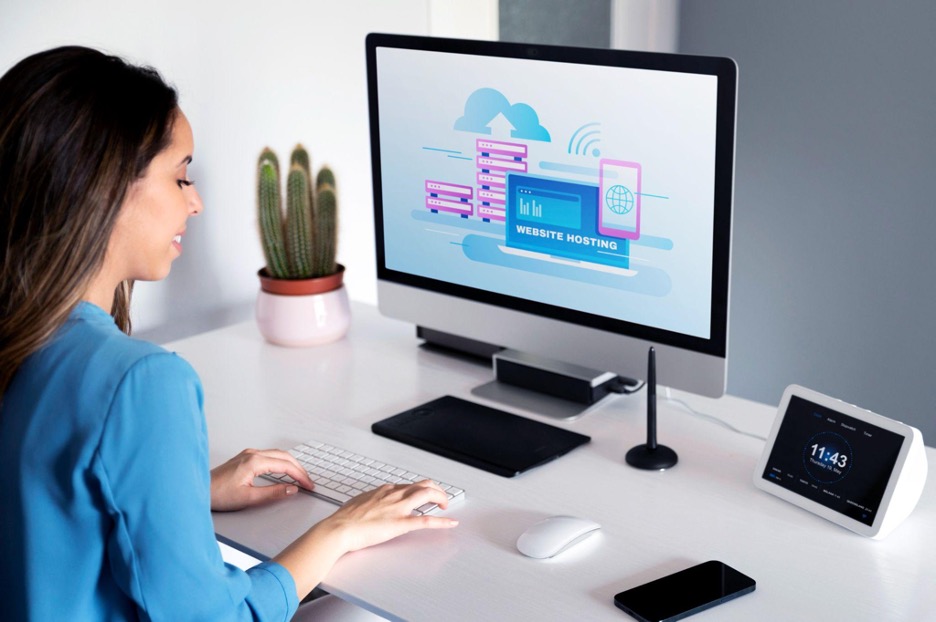
Say you need a file from your office computer, or an application that only exists on that machine, while you are working from home. In that case you can connect to the device remotely using remote desktop software. It lets you open applications and work with files as if you were sitting in front of the computer.
Remote work usually needs more than that, though. Teams also share documents, use online applications, store files centrally and collaborate across locations. Cloud computing covers much of this, but it works in a different way.
Knowing the difference helps you choose the right setup and avoid paying for tools you do not need. This guide explains both options, where they overlap, how to choose between them, and where a tool like AweSun Remote Desktop fits in.
What Remote Desktop Software Is Used For
Remote desktop software connects you to another computer. Once connected, you can see its screen and use its keyboard, mouse, applications and files.
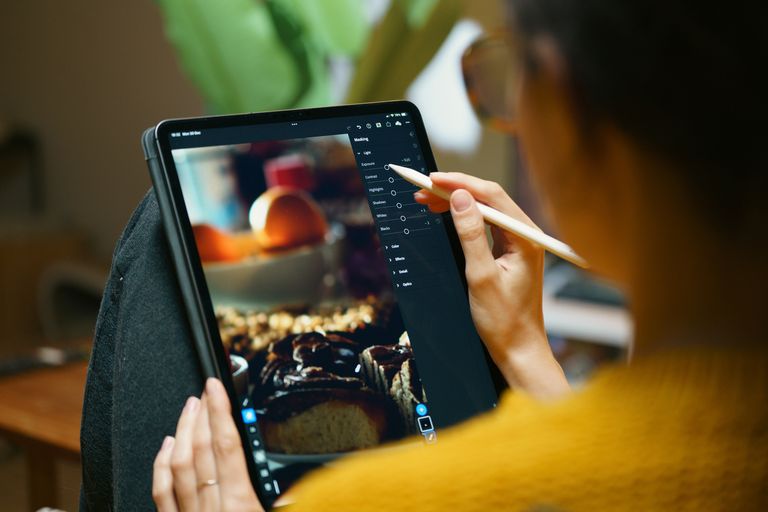
The main benefit is that you keep using your existing computer. A graphic designer, for example, may have a powerful workstation with specialist software, fonts and large project files. A home laptop may not have the storage or processing power to run them. By connecting to the office workstation, the designer keeps the same setup. Most of the processing happens on the remote machine, although the experience still depends on the software, the network and the task.
It also helps IT teams. With the user’s permission, an authorised technician can connect to a device and investigate a problem without travelling.
There are requirements. The host computer must be switched on and reachable, you need the right permissions, and the connection must be stable. Some setups need extra configuration for unattended access. It is also not always the best tool. If you only need to edit a shared document, opening it in your browser is usually quicker.
What Cloud Computing Actually Covers
Cloud computing is often treated as another word for online file storage, but it is much broader. It means using computing resources over the internet instead of owning and maintaining them yourself. Common types include:
- Software as a Service (SaaS): ready-to-use applications in the browser, such as email, document editors, project management and video meeting tools.
- Cloud storage and file sharing: central storage where team members access the same files, depending on their permissions.
- Infrastructure as a Service (IaaS): cloud servers and virtual machines that you configure and manage yourself, often used to run business applications or development environments.
- Platform services: managed databases and application hosting, where the provider handles much of the underlying maintenance.
- Virtual desktops: a full desktop environment hosted in the cloud and accessed from any supported device.
Unlike a remote desktop connection, most of these services do not depend on one specific computer. A marketing team in different cities can have one person writing in an online document, another working on designs and a third reviewing a project timeline, all from their own devices.
Cloud computing is also flexible about resources. As a business grows, it can add storage, increase computing power or give access to more people without buying new hardware.
The limitation is that cloud services may not include the desktop programmes your team already uses. If you rely on specialist software, you may still need remote access to a machine that has it installed, or a cloud-hosted version of that software.
Remote Desktop Software vs. Cloud Computing
| Factor | Remote Desktop Software | Cloud Computing |
| Main purpose | Access and control a specific computer | Use online applications, storage and computing resources |
| Where work runs | On the remote computer or cloud server you connect to | On the provider’s cloud servers, through browser-based applications, or on virtual desktops |
| Applications | Any application installed on the host machine | SaaS tools, or software you install on cloud servers or virtual desktops |
| Files | Stored on the remote device unless synced elsewhere | Stored centrally and shared based on permissions |
| Hardware | You manage the hardware of the computer or cloud server you connect to | The provider manages the physical infrastructure |
| Scaling | Scaling usually requires adding more host machines or software licenses | Resources can usually be increased or reduced as needed |
| Collaboration | Screen sharing and remote support | Shared workspaces and simultaneous editing |
| Cost pattern | Existing hardware plus software licences | Usually ongoing charges for users, storage and computing use |
| Main dependency | Host device being on and reachable | A reliable internet connection and the provider’s service |
| Security responsibility | You secure the host device and the access to it | Shared between you and the provider, depending on the service |
| Best for | Specialist software and existing workstations | Shared documents, online tools and flexible resources |
A video editor, for example, might connect remotely to a powerful office workstation for editing, while sharing finished files with the team through cloud storage. The two work well together.
How to Choose the Right Setup for Your Team
The right choice depends on what your team does every day. These questions help:
- Do you rely on applications that are installed on specific computers?
- Do several people need to edit or review the same files?
- Will people connect from home, client offices or while travelling?
- Do you work with large files, graphics, video or specialist software?
- What security and access requirements does your business have?
Mostly browser-based work: If your team writes documents, manages timelines and holds online meetings, cloud-based applications will probably cover most needs. People can work independently on their own devices.
Specialist desktop software: Design agencies, engineering teams and architects often depend on powerful workstations with specialist software and existing project files. Remote desktop access lets them connect to those machines instead of recreating the same setup on every device.
Support and training: IT or support teams benefit from remote access to authorised devices, and screen sharing is useful for training new staff.
A mix of both: Many businesses use cloud tools for collaboration and storage, and remote access for the few tasks that need a particular machine.
Whichever direction you lean, try it with a small group first. Ask them to do their normal tasks, transfer files if needed and note any delays. After a few weeks, check whether it has reduced friction, and adjust the setup if it has created new problems.
There are limits to both approaches. An unreliable internet connection makes either one frustrating, and a remote desktop is no use if the host computer is off or unreachable.
Where AweSun Remote Desktop Fits In
If your team depends on desktop software and files that already live on office computers, remote desktop software lets you keep that setup and work from anywhere, without moving everything to the cloud. AweSun Remote Desktop is one example of this kind of tool. It supports cross-platform access, file transfer and remote support, and it also offers features such as remote printing, clipboard sharing, recording, screen mirroring and privacy options. Availability depends on your edition, platform and setup.
Typical uses include:
- Reaching your office computer: if you have left a report on your office PC and it is switched on and set up for remote access, you can connect and work on it from a supported device, depending on your permissions.
- Transferring files: instead of emailing many attachments, you can move files between devices using supported file transfer. Check the destination folder and available space, and follow your company’s data rules for confidential files.
- Remote support: with permission, a technician can investigate a software or settings problem. Hardware, network or policy issues may still need someone onsite.
- Screen sharing: useful for showing a new colleague how to use an application. For complex projects, a proper meeting or collaboration tool may be a better fit.
Do not choose software based on how many features it has. Choose the ones that make your everyday tasks easier.
Testing a Remote Desktop Tool
- Check compatibility. Confirm that both the device you want to access and the device you will connect from are supported.
- Set up access. Follow the setup instructions and authorise your devices. If you need to reach a computer when nobody is sitting at it, review the unattended access options.
- Connect and try a real task. Open a document, use your usual application or transfer a small test file. Check that the screen is responsive and the text is readable.
- Check security. Make sure only authorised people can connect and that you know how to end a session.
If Your Remote Desktop Is Slow
Lag makes tasks like image editing, switching between applications or working on large projects frustrating. A few things to try:
- Check both connections. Use a stable network on both devices and avoid heavy downloads or uploads during important work.
- Close unnecessary applications on the host computer so it has more processing power available.
- Reduce graphics quality if the software allows it. This lowers bandwidth use, although the remote screen will be less detailed.
- Check the host device. If the connection keeps dropping, make sure the host is not going to sleep, restarting or losing its network connection.
- Test your real workload. Opening documents is not the same as editing video or fast-moving graphics. Testing the actual task shows whether the problem is the connection or the tool, before you spend money on a replacement.
Securing Your Business Data
Remote access is convenient, but you need control over who can reach your computers and files.
- Use strong, unique passwords and multi-factor authentication where possible.
- Give people only the permissions their role needs, and remove access when someone leaves or no longer needs it.
- Keep your operating system and remote access software up to date.
- Treat unattended access carefully. It is convenient, but the device needs proper authentication, access restrictions and physical security.
- Avoid connecting from untrusted devices for sensitive work, and never leave active sessions open on shared computers.
Vendors describe features such as encryption and authorised access, but check which security controls are included in your plan. No single feature makes a setup perfectly secure. Good security comes from the right software, careful permissions, updated devices and clear processes.
Cost Considerations
The cheapest option is not always the best. Look at the overall cost and how much time and effort it saves.
Remote desktop software lets you keep using computers you already own, which can avoid buying duplicate machines. However, you still pay to power, maintain and update those computers, and you may need licences or paid plans for advanced remote access or team management features. Some tools offer free features, with advanced ones costing extra, so check current pricing before deciding.
Cloud computing can grow more expensive as your business grows, since extra storage, computing resources and user subscriptions all add up. On the other hand, it can reduce the hardware you need to buy and maintain.
A simple way to compare is to estimate the monthly cost of each option, the time it should save, and any extra equipment you would need.
FAQs
Is remote desktop software the same as cloud computing?
No. Remote desktop software lets you control another computer. Cloud computing provides online services such as applications, storage, databases and virtual servers. They can be used together.
Is a cloud server the same as a remote desktop?
Not exactly. A cloud server is a virtual computer hosted by a provider, and you often connect to it using remote access. A remote desktop connection to your own office computer works similarly, but the computer is yours rather than rented.
Can I use AweSun Remote Desktop to work from home?
It can help you connect to supported computers, use their applications and transfer files. The experience depends on device compatibility, your network, the access you have set up and your edition’s features.
Do we need a powerful laptop?
Usually not, because most processing happens on the remote computer. Your laptop still needs to run the remote access software smoothly and display the remote screen, and a reliable network matters.
Can we transfer files?
Many remote desktop tools support file transfer, including AweSun. Check the current instructions for your operating systems, and test with a small, non-sensitive file first.
Is remote desktop access secure?
It can be, if set up properly. Strong authentication, limited access, regular updates and careful use of unattended access all reduce risk. Check your security needs before giving remote access to confidential systems.
Should we use remote desktop software or cloud computing?
Choose based on what your team needs. Remote desktop software suits teams that depend on specific computers or installed applications. Cloud computing suits shared files, online applications and flexible resources. Many teams use both.
Conclusion
Remote desktop software and cloud computing support remote work in different ways. Cloud computing covers a wide range of services, from SaaS tools and shared storage to virtual servers, databases and virtual desktops. Remote desktop software gives you direct access to a specific computer and the programmes and files on it.
If your team relies on existing workstations and specialist software, Remote Desktop Access can save you from rebuilding the same setup on every device. If your team collaborates mainly through online tools, cloud services may be the simpler choice. Tools like AweSun Remote Desktop are one option for the first case.
Before adopting any solution, test it with real tasks. Check the connection, review the features, and confirm that your team can work comfortably and securely. The best remote-work setup is not the one with the longest feature list. It is the one that lets your team finish everyday work with fewer delays and reliable access to what it needs.