
How to Translate Word Documents Without Losing Their Visual Structure
A translated proposal returns with the right words, but the pricing table breaks across two pages. A portfolio caption moves away from its image. One accented character appears in a different font.
These are practical document problems. Fixing them starts with the source file and continues through the final export.
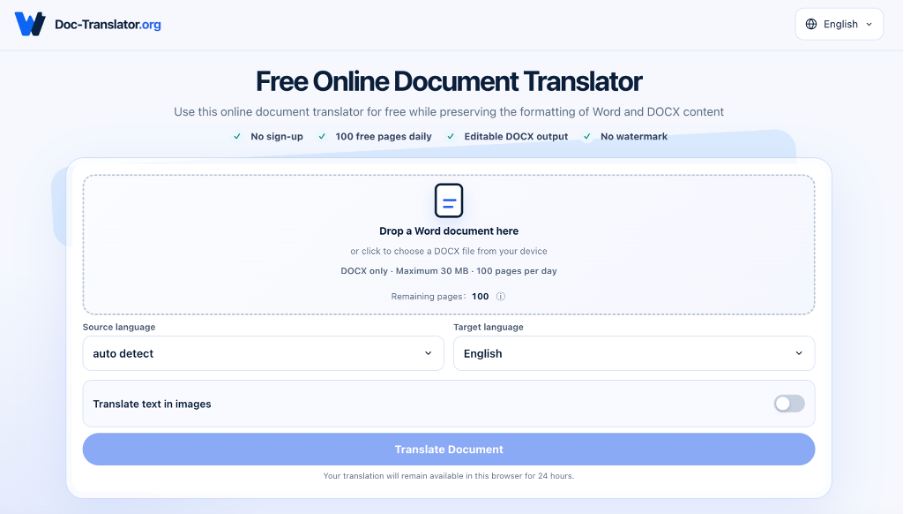
For proposals, company profiles, and portfolio descriptions saved in Word, Doc Translator provides a way to translate the complete DOCX and download an editable result. Use that output as a working draft: approve the language, correct the layout, and inspect the delivery file.
Clean the Source Before Translating
Save an untouched copy of the approved source. Work on a duplicate, resolve tracked changes, and remove comments that should not reach the recipient.
Next, turn on Word’s formatting marks using the ¶ button. Look for repeated spaces, empty paragraphs, and manual line breaks used to position content. Replace these with paragraph spacing, tab stops, or proper table cells.
Then check the Navigation Pane. If section titles do not appear there, apply the appropriate heading styles. A bold paragraph that looks like a heading still lacks the structure needed for consistent document-wide changes.
Fix these foundations before translating. Otherwise, every language version inherits the same fragile layout.
Choose the Right Route for the File
Translate the editable source whenever available. If someone supplies a PDF exported from Word, ask for the DOCX rather than rebuilding it from the PDF.
The table below helps define the work before upload.
| Source material | Recommended approach |
| DOCX with headings, paragraphs, and ordinary tables | Translate the file, then review language and layout |
| Older DOC file | Save a DOCX copy and inspect the conversion first |
| Scanned pages or photographed text | Use an appropriate text-recognition workflow before document editing |
| Design dominated by positioned text boxes and illustrations | Compare document translation with translating the copy separately and rebuilding the design in its source application |
To translate Word document while preserving formatting, Doc-Translator.org processes the DOCX and returns an editable Word file. Its layout-preservation features address common elements such as paragraphs, tables, images, lists, headers, and footers.
Keep the original beside the result. Matching section headings and table labels gives the reviewer a reliable way to compare corresponding content even when page numbers change.
Test Fonts With Real Translated Text
Do not approve a replacement font from its alphabet preview alone. Paste a sample containing the translation’s accented characters, punctuation, currency symbols, and numerals.
Check each style used in the document. A font family’s regular weight and italic weight do not always offer identical character coverage.
Suppose a French heading contains “é” and “œ.” If either character falls back to another typeface, the heading develops an inconsistent rhythm. Replace the affected style with a font that supports the full text, then check its commercial-use license once for the project.
Apply changes through Word’s styles. Editing scattered paragraphs individually makes later revisions harder to control.
Fix Overflow in a Deliberate Order
Start with wording. Ask the language reviewer whether a crowded heading has an equally accurate, shorter expression.
Then adjust the container: widen a table column, remove an unnecessary manual break, or give a caption another line. Reduce type size only after those options have been considered.
Preserve hierarchy across the document. If one body paragraph needs a smaller size to fit, investigate why that paragraph is being forced into a fixed space.
For a heading stranded at the bottom of a page, use Paragraph settings → Line and Page Breaks → Keep with next. For a caption beneath an image, check that the image paragraph stays with the caption.
Let the page count change when necessary. Forcing a translated proposal back into its original length often creates cramped tables and unreadable notes.
Read Tables Across, Not Just Down
Compare each row against the source: description, quantity, date, and price. A filled cell is not proof of a correct relationship.
For tables spanning several pages, repeat the header row. Where a short row must remain intact, review Table Properties → Row → Allow row to break across pages. Apply that setting selectively; a row taller than one page needs a different layout.
For pictures, confirm that each caption describes the correct image. Inline images generally follow text more predictably than floating objects with complex wrapping. Change the positioning only when it suits the design.
Give Complex Elements Their Own Check
Text boxes, SmartArt labels, embedded equations, and diagrams containing text deserve individual inspection. Their content may follow a different path from ordinary paragraphs, and support varies by element.
Check these items in the source and translated file:
- Is every visible label translated?
- Are equation symbols, subscripts, and superscripts intact?
- Does a text box display its final line?
- Are diagram labels still connected to the correct objects?
- Do text embedded in images and its surrounding explanation agree?
Treat this as a separate pass. Doc-Translator.org’s support for standard Word formatting does not establish that every embedded object will survive unchanged.
When a complex diagram fails, translate its labels separately and edit the original diagram. For a design-heavy brochure, rebuilding the localized layout in the authoring application may be the more dependable choice.
Inspect the File You Will Deliver
Open the translated DOCX at normal reading size and scan every page in Print Layout. Check links, page references, and the table of contents; update relevant Word fields after layout changes.
If the recipient will receive a PDF, export it and inspect that PDF separately. Check font rendering, clipping, image placement, and searchable text. A clean Word view does not guarantee an identical PDF export.
Finally, label the approved file with its language and version. Store it beside the matching source and record any approved font substitution. The next update should begin from those files.
FAQ
Does Document Translation Guarantee an Identical Layout?
No. Text length, font coverage, and embedded objects affect the result. Plan for a language review and a layout pass.
Can I Edit the Translated Document?
Yes. Doc-Translator.org returns an editable DOCX for corrections and final formatting.
What If Some Text Remains Untranslated?
Check whether it belongs to a text box, diagram, equation, or image. Identify the object type before choosing how to translate and replace it.
When Should I Rebuild the Layout Manually?
Consider manual layout work when the document relies heavily on precise positioning, complex diagrams, or custom typography and the translated draft needs extensive repair.