How to Convert PDF to Word on Mobile While Preserving Formatting
You usually need to convert PDF to Word on mobile at the worst possible moment. A client sends back a contract at 8 PM with three clauses to revise, and your laptop is sitting at the office. Mobile PDF viewers let you read and highlight, but not restructure a paragraph or rewrite a payment term. Copy-pasting into a notes app strips the formatting and leaves you rebuilding the document line by line.
Online PDF to Word conversion sits between those two. To show you what actually works when you’re away from a computer, this guide uses a real hands-on mobile test to walk you through converting documents on your phone, preserving formatting, and handling urgent edits on the spot.
Why PDF to Word Formatting Changes on Mobile?
A PDF works like digital paper. It fixes every character, image, and line in a specific position on the page. A DOCX file works differently because its text flows and paragraphs adjust according to the screen size and document settings. During conversion, the tool has to determine which fixed elements belong together as paragraphs and which spaces were added only for visual alignment.
PDF (Fixed Coordinates) —> Converter Guesswork —> DOCX (Flowable Text)
Three specific pressure points show up on mobile:
- Custom Fonts & Screen Reflow: PDFs embed font files directly inside the document. DOCX files rely on fonts installed on the target device. If a contract uses a custom corporate serif and your iPhone or Android lacks it, the mobile app substitutes a default system font. This shifts line lengths, causing one-line headings to wrap onto two.
- Loss of Table Grid Data: Multi-column tables in simple PDFs are often just aligned text blocks without an underlying grid structure. The converter must infer column boundaries from white space. Simple borders convert cleanly, but merged cells or invisible borders frequently collapse into plain paragraphs.
- Mobile RAM Throttling on Large Files: Mobile browsers strictly throttle background memory to preserve battery. Converting files over 10 MB locally on a phone browser often causes tab crashes. Server-side conversion sidesteps local memory limits, though your cellular data connection still dictates upload speed.
Step-by-Step: How to Convert PDF to Word on Mobile Seamlessly
We used the TeraBox PDF to Word Converter for the PDF to Word converting . It runs in a mobile browser, so nothing needs installing.
Step 1: Open the Converter and Upload Your PDF
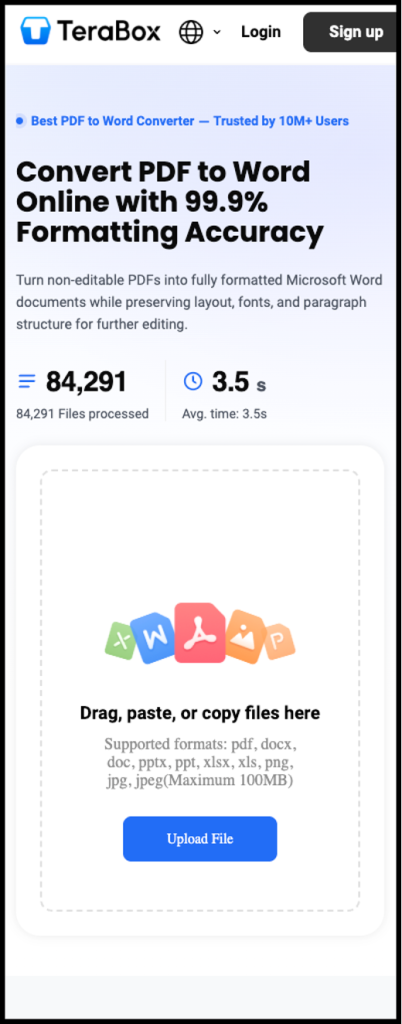
Open the converter page in Safari or Chrome on your phone. Tap the upload area, then pick the file from your device storage, Files app, or cloud drive. Our 2.4 MB agreement uploaded in about 12 seconds on mobile data.
Step 2: Start the Conversion
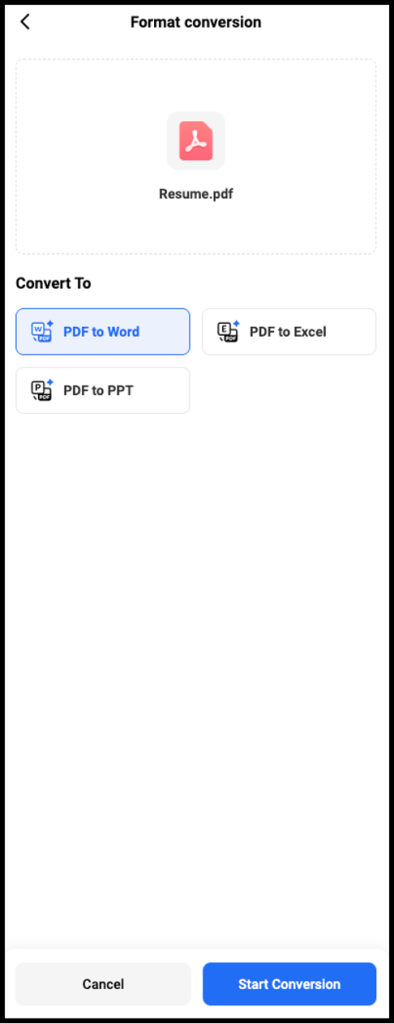
Tap Convert. A status indicator runs while the file processes. The 6-page agreement finished in roughly 35 seconds. Longer documents and image-heavy PDFs take proportionally more time.
Step 3: Download the DOCX
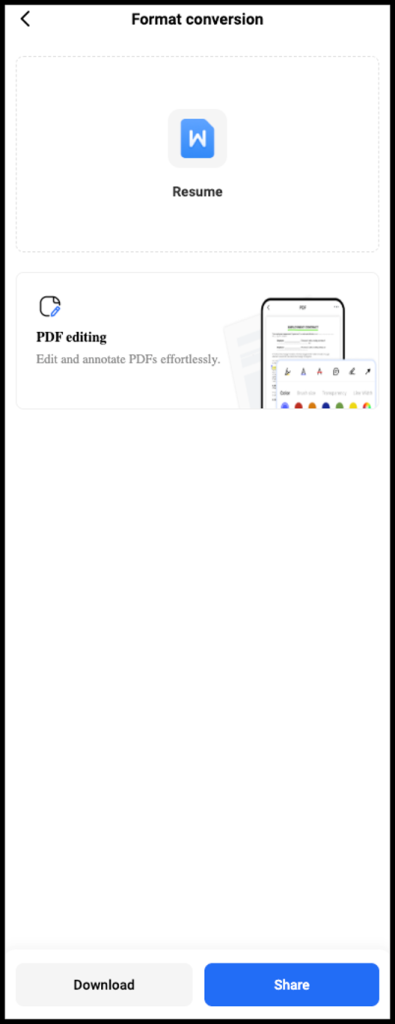
When conversion completes, tap Download. The file saves as a .docx to your phone’s default download location, or you can save it to TeraBox cloud storage if you’re signed in.
What Happened to Our Test File
The body text converted cleanly and was fully editable. Paragraph breaks, bold and italic styling, and numbered clause lists all held. The company logo landed in the right position at the top of page one.
The two-column pricing table rebuilt as an actual Word table, not loose text, which meant we could edit cell values directly. Column widths shifted slightly, so the second column ran narrower than the original.
The custom serif heading font substituted to a system serif, which changed heading line breaks on two pages. The signature block, which used underscores for signature lines, came through as separate paragraphs rather than a formatted block, and needed manual spacing cleanup.
Nothing about that is unusual for PDF to Word conversion. The point is knowing where to look before you send the file back.
How to Find and Open the Converted Word Document
Where the file lands depends on your phone and browser.
On iPhone(iOS)
Safari saves downloads to the Files app by default, usually under On My iPhone > Downloads or iCloud Drive > Downloads. Tap the download icon in Safari’s address bar to jump straight to it. Chrome on iOS saves to its own Downloads section, which also routes through Files.
From there, tap the DOCX and pick an app: Microsoft Word handles formatting most faithfully, Pages opens it but converts to its own format, and Google Docs works if you want to edit and share in one step.
On Android
Most browsers save to the Downloads folder. Open it through your device file manager, the Files by Google app, or the browser’s own download list. Samsung devices route through My Files.
Open the DOCX with Microsoft Word, WPS Office, or Google Docs. WPS tends to render tables closest to the original on Android, based on our test.
Download locations vary by browser and Android skin, so check your browser’s download list first if the file isn’t where you expect.
3 Pro Tips to Reduce Formatting Issues Before You Convert
Follow these steps to reduce formatting issues before you convert:
Start With the Cleanest Version of the PDF
If you have the original digital PDF, use it rather than a printed-and-rescanned copy. Text-based PDFs carry real character data. Scanned pages carry only pixels, which means the converter has to recognize the text before it can convert anything. The difference in output quality is significant.
Use OCR for Scanned or Image-Based Files
If the PDF came from a scanner or a photo, plain conversion produces a Word file containing one large image and no editable text. Run it through a converter with OCR (optical character recognition) instead. Accuracy depends on scan quality, so expect to proofread names, numbers, and anything in a signature block.
Compare the DOCX Against the Original Before Editing
Open both side by side, or scroll through the DOCX with the PDF nearby. Check tables, headings, page breaks, and any section with unusual spacing. Five minutes of checking prevents sending a contract with a mangled pricing table.
Frequently Asked Questions
Does this work on both iPhone and Android?
Yes. Browser-based converters run on any modern mobile browser. The conversion itself is identical. Only the download location and default apps differ between platforms.
Do I need to install an app to convert PDF to Word on my phone?
No. The conversion happens in your browser. You will need a Word-compatible app to edit the DOCX afterward, such as Microsoft Word, Google Docs, or WPS Office.
Can I convert a scanned PDF on mobile?
Yes, as long as the converter supports OCR. OCR recognizes the text inside scanned or image-based pages and turns it into editable content instead of leaving each page as a static image. The TeraBox PDF to Word Converter supports OCR, so it can extract text from scanned PDFs during conversion.
Will the formatting match the original exactly?
Most standard content, including body text, paragraph formatting, lists, and simple tables, is usually preserved well. Some elements, such as custom fonts, complex tables, or precisely positioned graphics, may shift slightly during conversion.
Are there file size limits?
TeraBox AI tool supports files up to 100 MB, which is sufficient for most contracts, reports, and other everyday documents. Files close to the limit may take longer to upload on a mobile connection, so using a stable Wi-Fi network is recommended.
Is it safe to upload confidential documents?
Depends on the tool’s privacy policy. Look for HTTPS encryption and an automatic file deletion window, typically 24 hours. For highly sensitive contracts, converting on a trusted desktop tool remains the safer option.
Conclusion
Being able to convert a PDF to Word on mobile turns a potential delay into a minutes task. You get a fully editable document without sitting at a desk, which is crucial when urgent contract revisions pop up outside office hours.
Just build in the review step. Check tables, headings, and any section with custom formatting before you edit or send. If a browser-based approach fits how you work, the TeraBox PDF Converter handles the conversion without an install.