
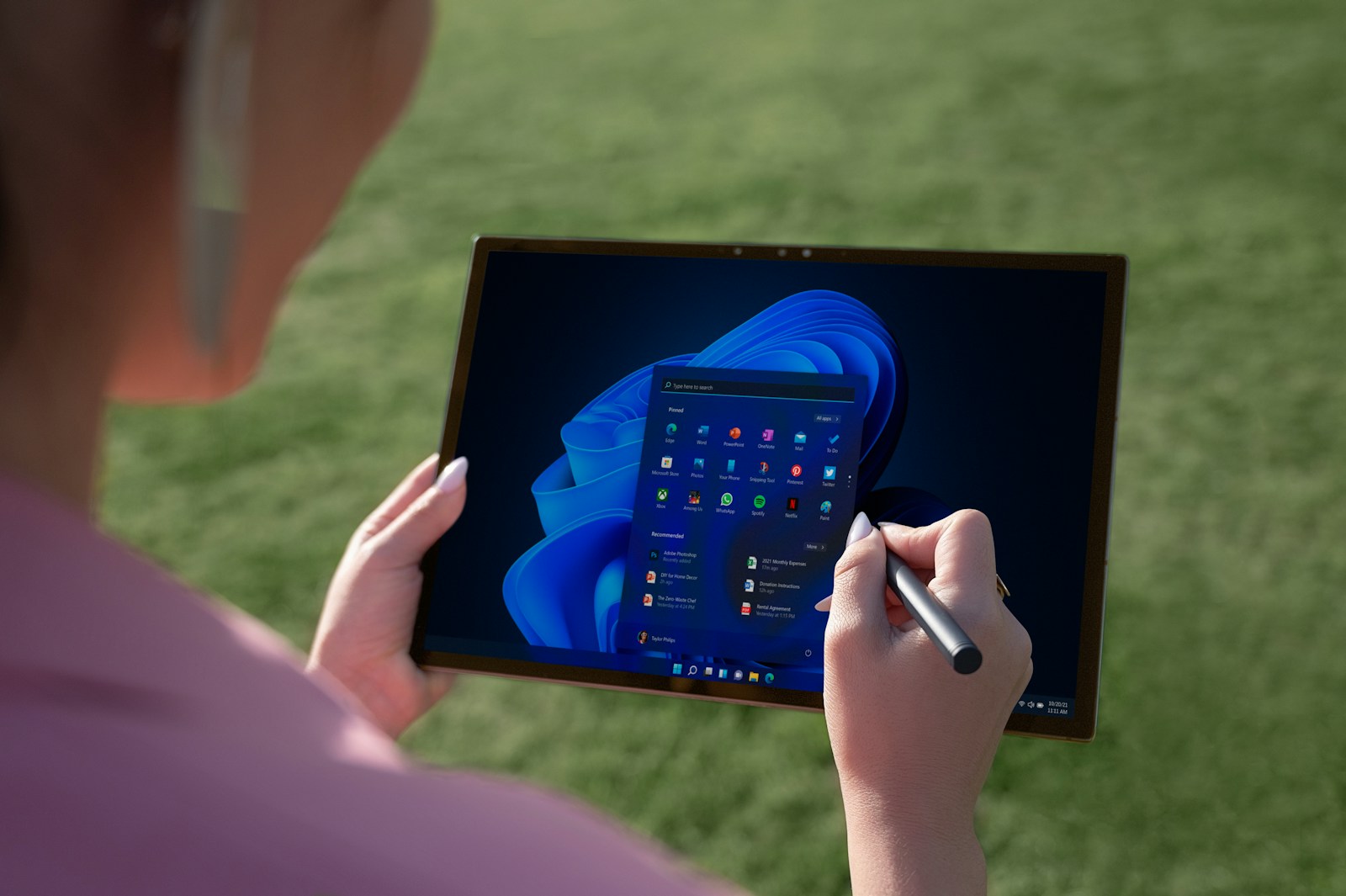
How to Turn Your Tablet into a Second Monitor
Key Takeaways
- You can convert your iPad or Android tablet into a second monitor using Duet Display.
- To begin, you must install the Duet Display desktop client on your macOS or Windows computer.
- The system offers wired or wireless zero-lag performance, ideal for remote professionals seeking seamless multitasking.
Maximize Your Productivity with a Dual-Screen Setup
In today’s remote work culture, productivity depends heavily on your workspace setup. One of the most cost-effective ways to boost efficiency is to use your tablet as a second monitor. With Duet Display, you can turn your iOS or Android tablet into an extension of your desktop, enhancing your workflow without buying extra hardware.
Duet Display is trusted by professionals across design, development, finance, and remote business management because of its zero-lag performance and intuitive user experience.
Why Use Your Tablet as a Second Monitor?
A second screen offers a significant advantage in focus, multitasking, and workflow efficiency. Using your existing tablet as an extra monitor is not only convenient but also highly practical. Here’s why:
- Increased screen real estate for multitasking
- Improved ergonomics by allowing screen positioning flexibility
- Cost savings compared to traditional external monitors
- Portability, especially useful for remote workers and travelers
- Touchscreen and stylus compatibility for creative or hands-on tasks
To activate this setup, it’s crucial to download and install the Duet Display desktop host on your main device. This software acts as the bridge between your computer and tablet.
Step-by-Step: Set Up Duet Display as a Second Monitor
Follow these steps to get started:
1. Verify Device Compatibility
Before installing, make sure your devices meet the system requirements:
- Computer: Windows 10 or later / macOS 10.14 or later
- Tablet: iOS 10+ or Android 7.0+
- Connection: USB cable for wired mode or shared Wi-Fi for wireless mode
2. Install the Duet Display Desktop Client
Visit the official Duet Display website and download the desktop client for your system.
This application must be installed on your Mac or PC—it is required for your tablet to connect and function as a second display.
3. Download the Duet App on Your Tablet
Install the Duet Display app from the App Store (iOS) or Google Play (Android).
Once installed, the app will automatically detect your computer when:
- Connected via USB
- Or both devices are on the same Wi-Fi network
4. Connect the Devices
- Launch the desktop client on your computer
- Open the Duet app on your tablet
- Your tablet should automatically extend or mirror your desktop screen
You can customize display settings like resolution, refresh rate, and performance modes from the desktop client interface.
5. Start Working with Zero Lag
Duet Display is optimized for performance:
- Wired mode offers true zero-lag responsiveness
- Wireless mode is highly responsive on stable networks
- Touch and stylus input are supported on compatible tablets
This makes Duet a great option for professionals who demand reliability and speed.
Advantages and Limitations
| Benefits | Limitations |
|---|---|
| Easy setup and installation | Paid mobile app |
| Compatible with both iOS and Android | Wireless performance depends on Wi-Fi quality |
| Zero-lag with wired connection | Desktop client is a required component |
| Supports touchscreen and stylus input | Less suitable for resource-intensive gaming |
| Portable and ideal for remote work | May increase battery usage on tablets |
Who Benefits Most from This Setup?
Using Duet Display is especially useful for:
- Software Developers: Keep your code on one screen and browser or documentation on the other
- Graphic Designers: Offload tools or layers to the tablet and work on a clutter-free main screen
- Students and Educators: Watch lectures on one screen while taking notes on the other
- Writers and Editors: Use the tablet to monitor communication apps or research material
- Remote Teams: Stay in meetings while tracking project dashboards simultaneously
Common Mistakes to Avoid
- Skipping the desktop client: The connection won’t work unless the Duet Display desktop software is installed on your computer
- Using outdated devices: Ensure both your computer and tablet meet the required operating system versions
- Relying on weak Wi-Fi: Wireless mode requires a strong and stable connection
- Not adjusting performance settings: Duet allows resolution and frame rate customization for optimal performance on older machines
Best Practices for Optimal Performance
To get the most out of your dual-screen setup, consider these tips:
- Always keep both apps updated to ensure compatibility and stability
- Use USB mode for long work sessions or when editing high-resolution content
- For macOS users, enable screen recording and accessibility permissions when prompted
- Use a tablet stand or adjustable arm to position the second screen ergonomically
- On compatible devices, enable touchscreen input to interact directly with your desktop content
Frequently Asked Questions
Do I need to purchase Duet Display?
Yes, the mobile app requires a one-time purchase through the App Store or Google Play. The desktop client, however, is free and essential for operation.
Is Duet Display secure?
Duet Display is a widely trusted application, used by professionals across industries. It has been featured in technology publications like TechCrunch and The Verge, confirming its credibility and safety.
Can I use Duet Display wirelessly?
Yes. You can connect wirelessly over Wi-Fi. However, for best performance, especially during video editing or real-time collaboration, a wired connection is recommended.
What’s the difference between Duet Display and Apple Sidecar?
Sidecar only works within the Apple ecosystem and on newer macOS versions. Duet Display, by contrast, works across platforms, supporting both Windows and macOS, and is compatible with a broader range of tablets.
Does it support touch and stylus input?
Yes, Duet Display offers full touchscreen support and can detect stylus input like the Apple Pencil, making it ideal for creative professionals.
Duet Display vs Alternatives: Quick Comparison
| Feature | Duet Display | Apple Sidecar | Spacedesk |
|---|---|---|---|
| Cross-platform | Yes | No (Apple only) | Yes |
| Touchscreen support | Yes | Limited | No |
| Wired mode | Yes | Yes | No |
| Wireless mode | Yes | Yes | Yes |
| Performance | Zero-lag (wired) | Low-latency | Variable |
| Stylus support | Yes | Yes | No |
Setup Checklist
Use this checklist to ensure a smooth experience:
- Computer with macOS or Windows
- Tablet with iOS or Android
- USB cable or strong Wi-Fi network
- Duet Display desktop client installed
- Duet Display app installed on tablet
- Permissions enabled on macOS or Windows
- Optional: Tablet stand for better ergonomics
Conclusion
In a remote work environment, efficiency often depends on the tools at your disposal. By using Duet Display, you can extend your desktop and create a multi-screen workspace using the devices you already own. Whether for design, development, writing, or administration, this setup boosts productivity, streamlines your workflow, and keeps you mobile.
To get started, download the Duet Display desktop client from the official Duet Display website and pair it with the mobile app. Within minutes, your tablet becomes a powerful extension of your professional toolkit.