From Type to Motion How to Turn a Creative Brief into an AI Brand Video
A typeface can establish a brand before a viewer reads a single word. A geometric sans serif may feel precise and contemporary. A high contrast serif can suggest editorial confidence. Rounded letterforms often feel approachable. Those qualities are useful beyond a static layout because they can also guide the pace, camera movement, lighting, and texture of a short video.
The difficulty is translation. A creative brief may contain a font choice, a color palette, and a few adjectives, while a video generator needs a description of visible action. Designers therefore have to convert graphic language into scene direction. The aim is not to ask AI to typeset the final campaign line. It is to build footage with the same visual character, then add accurate typography during finishing.
insMind provides a practical route for that process. Its broader AI video generator brings several video models and creation methods into one interface, while the dedicated text workflow is useful when the idea begins as copy rather than a finished image.
Start With the Typeface Personality
A font name alone tells a video model very little. Instead, describe what the typography communicates. If the brief uses a condensed grotesque for a sports launch, the useful video cues might be tight framing, fast lateral movement, hard light, and abrupt cuts. An elegant serif for a fragrance campaign may point toward slower camera motion, shallow depth of field, soft highlights, and restrained composition.
This translation also keeps the prompt focused on things the model can render. Generative video can produce atmosphere, objects, people, environments, and camera movement. It is less dependable at drawing exact logos, kerning a headline, or preserving a specific font across frames. Treat brand type as art direction, not as generated content.
Turn the Creative Brief Into Visible Direction
Before opening the generator, reduce the brief to one shot. A short clip works best when it communicates one visual idea, such as a product emerging from shadow, a poster coming to life, or a quiet workspace changing from morning to evening. Trying to fit the entire campaign story into five seconds usually produces confused movement.
A useful prompt identifies the subject, setting, action, camera, light, and pace. It can also state what should be absent. For example: “A matte black perfume bottle on a reflective stone plinth, thin mist moving behind it, slow camera push in, narrow beam of cool white light, high contrast editorial mood, clean background, no lettering, no logo, five second commercial shot.” The final two exclusions matter because they reserve typography for a controlled design stage.
If the campaign will run in several formats, decide the primary frame before generation. A 16:9 composition leaves horizontal space for a website hero or presentation. A 9:16 frame suits Reels, Shorts, and Stories. A square version is useful for feeds but gives the subject less room to move. Generate for the intended frame rather than cropping important action later.
How to Create the Brand Video in insMind
The following workflow uses insMind’s text to video tool. The labels and available models may change as the product is updated, but the working sequence remains prompt, settings, generation, and export.
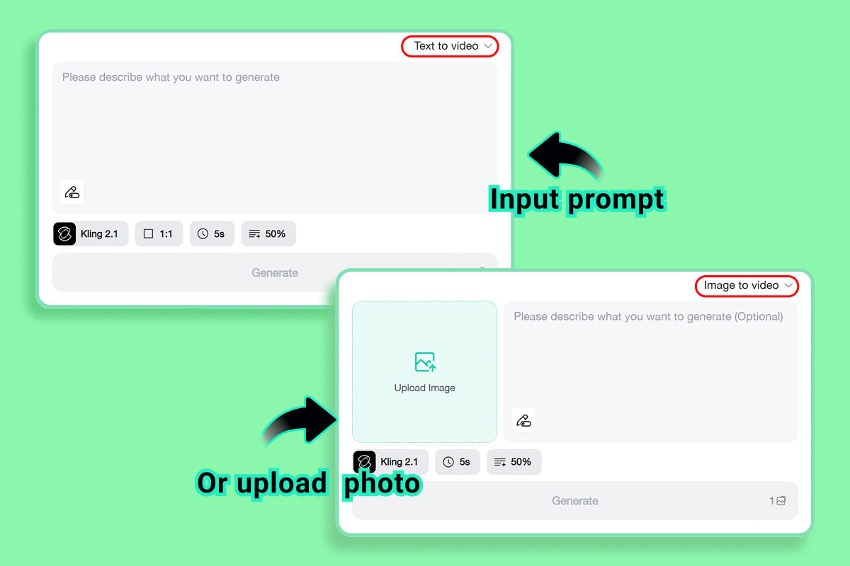
Step 1 Select Text to Video and Enter a Visual Prompt
Open the video generator, select Text to video, and place the prepared direction in the prompt box. Describe concrete motion instead of relying on brand adjectives alone. Replace “premium and energetic” with visible instructions such as “polished chrome reflections, a quick forward camera move, and crisp studio light.” Keep exact headlines and logos out of the prompt so the generated frames stay clean for later typography.
Step 2 Choose the Model and Output Settings
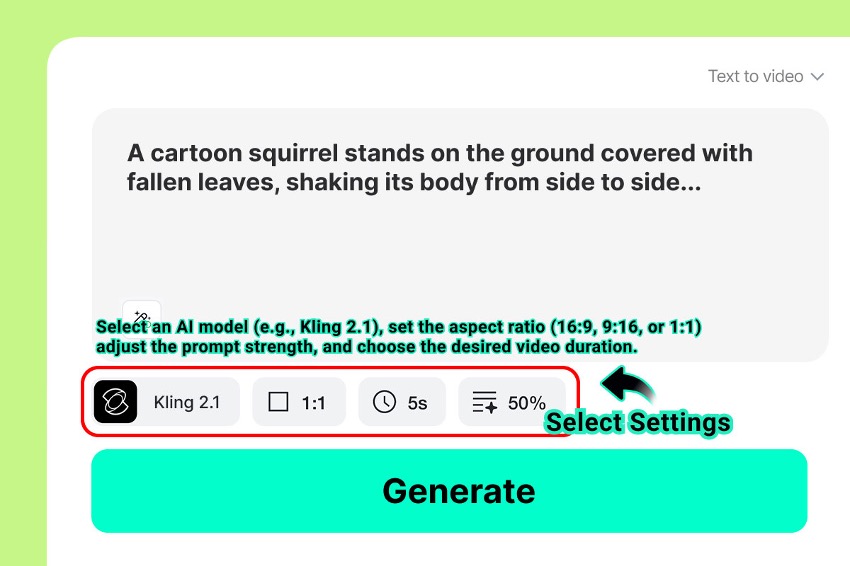
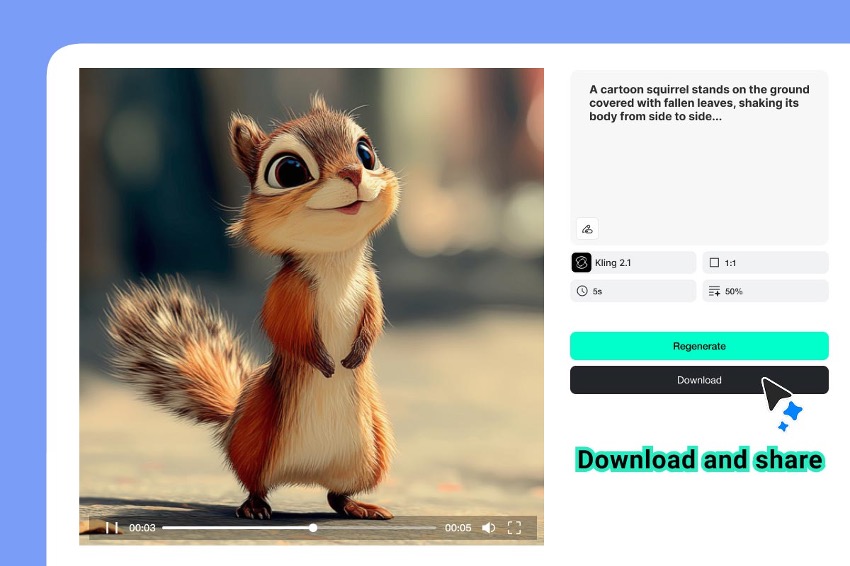
Select an available AI model, then set the aspect ratio and duration for the publishing channel. For a first concept test, a five second clip is usually enough to judge movement and atmosphere. Choose 16:9 for a landscape presentation or web header, 9:16 for a vertical social post, or 1:1 for a square feed asset. If prompt strength is available, begin near the middle and adjust only after reviewing the first result.
Step 3 Generate and Review the First Clip
Click Generate and wait for the preview. Depending on the selected model, generation may require signing in or using credits. Review the result as a motion study rather than a finished advertisement. Check whether the subject stays recognizable, the main action is readable, the camera follows the requested direction, and the composition leaves enough negative space for the planned headline.
Step 4 Download the Usable Version
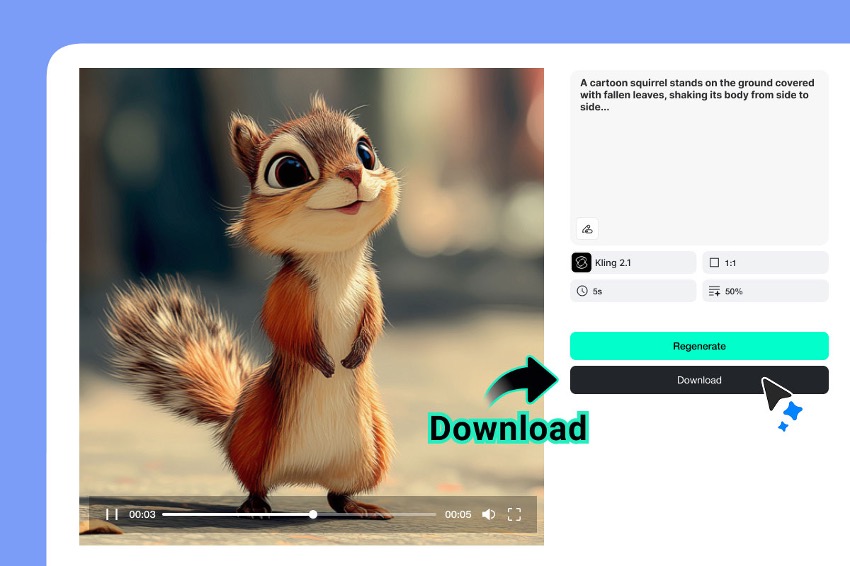
When a result supports the brief, download the MP4. If it does not, change one variable at a time before regenerating. Tighten the camera instruction, simplify the action, or make the lighting more concrete. After export, add the approved logo and typeset copy in a video editor or design tool. This preserves the real font, spacing, and legal brand lockup instead of asking the model to approximate them.
Review Motion With the Same Care as Type
Designers already inspect weight, spacing, hierarchy, and contrast in a layout. A video review benefits from equally specific questions. Does the first frame establish the subject quickly? Does the movement reinforce the intended personality? Can the viewer understand the shot without a caption? Is there a quiet area where the headline will remain legible on both desktop and mobile?
Look for temporal consistency as well. Reflections should not jump without cause, product proportions should remain stable, and background objects should not appear or disappear between frames. Small distortions may be acceptable in an exploratory mood film but not in a product claim or final paid advertisement. The intended use determines how strict the review needs to be.
Build a Repeatable Prompt System
Once a team finds a useful visual language, record the prompt components that produced it. Keep the subject and action separate from reusable brand cues such as camera speed, contrast, surface texture, and color temperature. This makes it easier to develop related clips without pasting the same long prompt into every project.
A prompt library should still allow controlled variation. One campaign may use the same slow camera push and cool directional light across three subjects, while another may preserve the palette but change the motion for each format. Consistency comes from repeating the right creative decisions, not from generating identical scenes.
Where AI Video Fits in a Design Workflow
Text generated video is particularly useful at the concept stage. A designer can test whether a static art direction has enough energy for motion before commissioning a shoot or building a detailed animation. Small teams can also create background footage for launch teasers, social posts, pitch decks, and internal presentations when the scene does not require exact product behavior.
It should not replace the parts of a brand system that demand precision. Keep final typography, logos, regulatory copy, prices, interface screens, and detailed product claims in conventional design and editing tools. AI supplies the moving image; the designer remains responsible for accurate communication.
Make the Brief Do More Work
A good AI brand video begins before the Generate button. When a creative brief explains why a typeface feels appropriate, that reasoning can guide every visible decision in the clip. Sharp geometry can become firm camera paths. Open counters and generous spacing can suggest airier compositions. A restrained editorial face can lead to slower motion and fewer competing objects.
That approach turns typography into a source of direction rather than an element the model has to imitate. insMind can then help designers test the idea quickly, compare variations, and export usable motion footage. The final layer of type remains exact, while the video carries the same character as the original brand system.