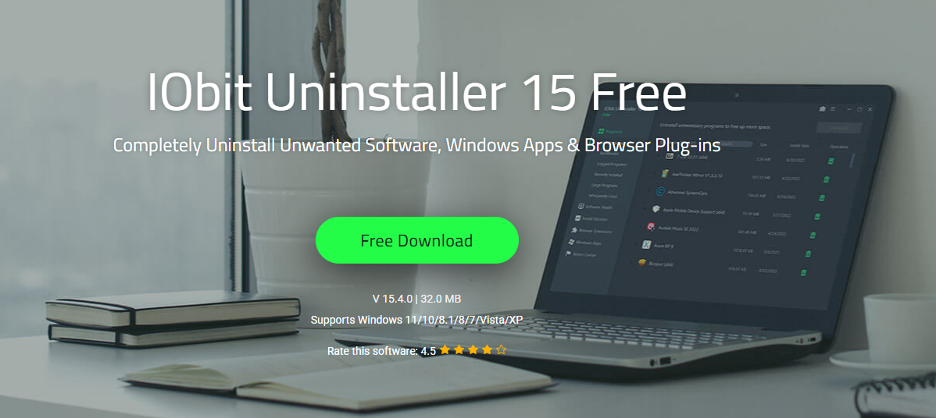
Why IObit Uninstaller Became Part Of My PC Maintenance Routine
I never planned to keep a dedicated uninstaller on my PC forever. At first, I treated it as a one-time rescue tool, install it, fix a problem, then remove it. Somewhere along the way, IObit Uninstaller quietly turned into something I now open almost every week.
How My “Clean” PC Slowly Got Messy
I uninstall games when I stop playing them, I do not install random toolbars on purpose, and I try to keep my startup list short. Even so, Windows kept slowing down over time.
Little things gave it away:
- Apps that I thought I had removed still left folders behind.
- The program list was full of names I did not recognise, usually bundled with something else.
- Browsers started to show more notifications and odd extensions than I remembered allowing.
I knew that uninstalling from Apps & Features rarely cleans everything, but I underestimated how much junk can build up from leftover files, registry entries and browser plug-ins. That was the gap IObit Uninstaller filled the first time I used it, and it is the reason it never left.
What Convinced Me To Keep It Installed
Once I read the product page properly, I realised IObit Uninstaller was designed as more than a simple “remove program” button. The current free version, IObit Uninstaller 15, is built to remove unwanted programs, Windows apps and browser plug-ins, then scan for and delete associated leftovers so the system stays clean and light.
A few details stood out:
- It supports everything from Windows XP up through Windows 11 and can remove Microsoft Store apps and built-in components in one click, not just classic desktop programs.
- Its upgraded uninstall engine and improved scanning algorithms are meant to detect more residual files, folders and registry keys than a standard uninstall.
- Software Health offers a one-stop check that looks for uninstallation leftovers, redundant setup files, hidden software permissions and disruptive notifications, then fixes them all.
- Install Monitor can log changes made by new software, so future uninstalls are cleaner, because it knows exactly what was added.
- The database of malicious plug-ins and toolbars is expanded, so browsers are not left full of ad-based or risky extensions.
When I saw that it targeted exactly the kinds of problems that had been creeping onto my system, I stopped thinking of it as a temporary utility and treated it more like an essential maintenance tool.
Where It Fits In My Maintenance Routine
These days, my “keep the PC sane” routine is simple, and IObit Uninstaller is right in the middle of it.
Weekly: Quick sweep for new clutter
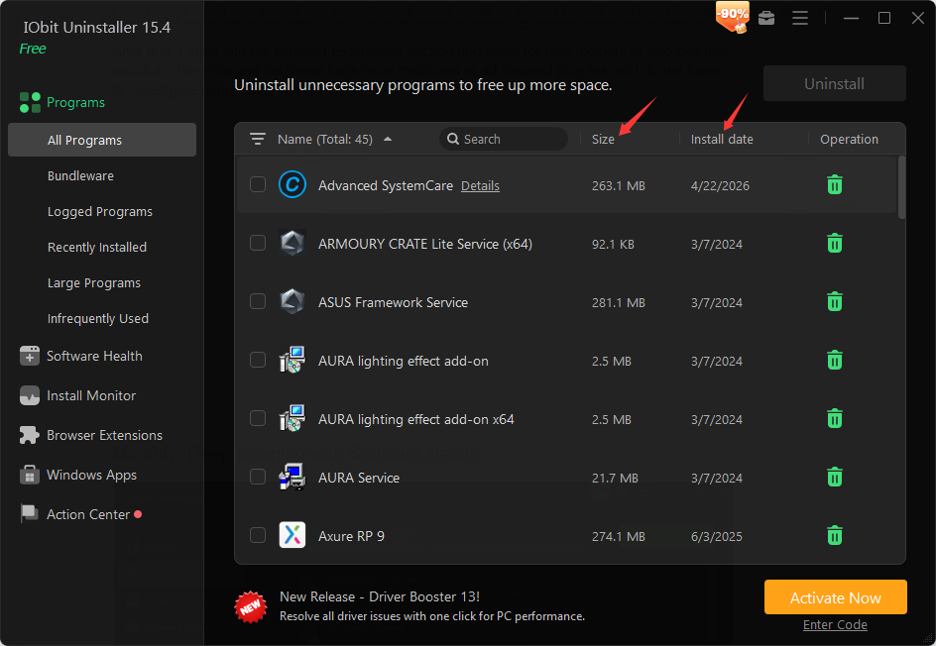
Once a week, I open IObit Uninstaller and sort installed programs by install date. That makes it easy to see what has appeared since the last time I checked, especially small helpers and bundleware that came with other installs. Anything I do not recognise or know I will not use again gets removed on the spot.
After that, I jump into the Browser Extensions section and scroll for new toolbars or add-ons that snuck in. The enlarged database flags more malicious or ad-focused plug-ins, so I do not have to investigate every single entry myself.
Monthly: Deep cleaning with Software Health
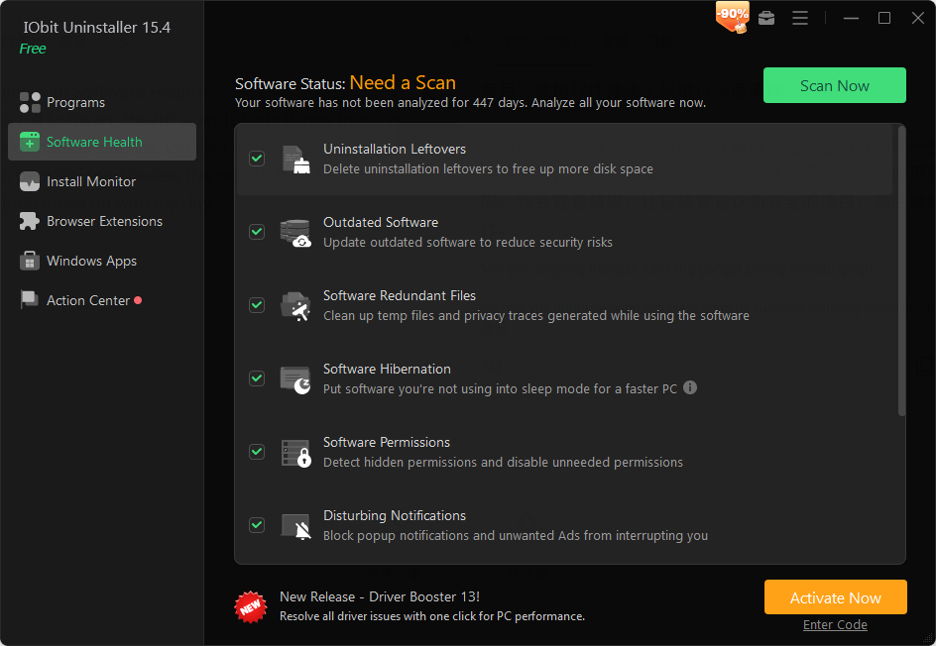
Once a month, I run a full Software Health scan. It finds things that slip past weekly checks like installer caches, log files from old software, apps and notification permissions. I review the results, let it fix what it considers safe, and then move on with my day.
After installing the new software, let Install Monitor keep notes
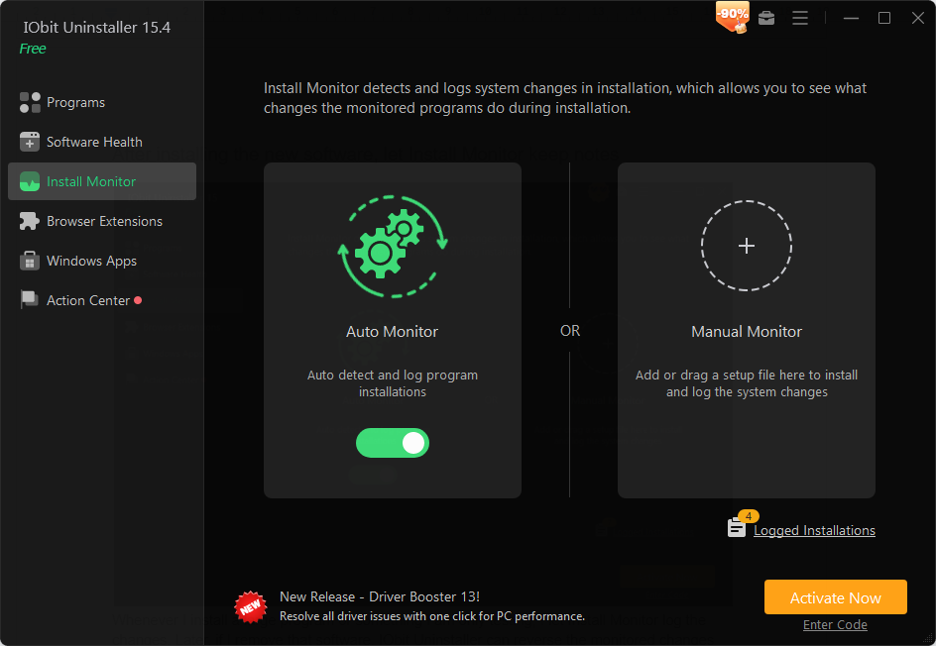
Whenever I install a large program or something I am only testing, I let Install Monitor log the changes. Later, if I remove that software, IObit Uninstaller can reverse the monitored changes and clean related files more accurately than a blind scan. It feels like having a detailed receipt of what each installer did to my system.
The Features I End Up Using Most
Even though IObit Uninstaller is packed with options, I keep coming back to a few that justify its place on my PC.
Powerful uninstall and leftover scan
I rarely use the Windows uninstaller directly now. Running removals through IObit Uninstaller means I can immediately follow them with a deep scan that finds folders, registry keys and other leftovers. That is exactly what its “Clean & Light PC” description promises, and it matches what I see in practice.
Handling stubborn and bundled software
Every once in a while, a program refuses to uninstall or simply does not appear in the normal list. Force Uninstall and the stubborn program detection have cleared out software that other tools left behind.
Browser plug-in and notification cleanup
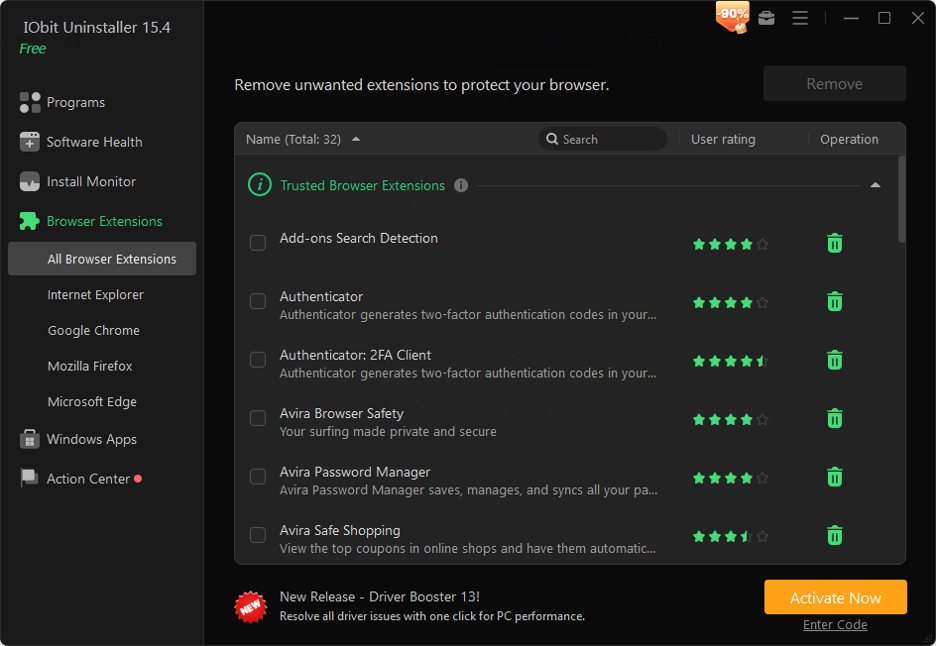
Modern browsers quietly collect toolbars, extensions and notification permissions. IObit Uninstaller lists them across Chrome, Edge, Firefox and others and lets me remove them or disable “disturbing notifications” with a single scan.
Software Health as a dashboard
Instead of manually hunting for old setup files and hidden apps, I can rely on Software Health to point out the worst offenders and handle them at once. It is the closest thing I have to a dashboard for the overall state of my installed software.
What Keeps It Honest For Me
No tool is perfect, so a few minor annoyances actually make my trust in it feel more realistic.
Full leftover scans and Software Health passes can take a bit of time on a system with a long history. I usually run them when I am not trying to do anything else.
The interface has a lot of power tucked into different sections. It took me a few sessions to get comfortable with where everything lives and which options are safe to enable by default.
When I tell it to create restore points and use very thorough cleanup, extra confirmation prompts appear. They slow down batch jobs, but they also stop me from deleting something important because I was clicking too fast.
Those small rough edges are, oddly, part of why I keep it. It behaves like a serious utility rather than a flashy one-click miracle.
Why It Earned A Permanent Place
At this point, my Windows maintenance routine would feel incomplete without IObit Uninstaller. It did not win me over with a single dramatic fix but with a steady pattern of small, reliable wins: removing stubborn software, cleaning up leftovers, and giving me a clear view of my software health.
Most of the time, it sits quietly on my PC, waiting for me to run a quick sweep or a monthly deep check. The fact that this uninstaller for Windows keeps finding things worth removing each time is exactly why it has become a permanent part of how I look after my system.