Best Free 2026 Revision Workflow: Upscale for Clarity + Edit Text Instantly
Last-minute changes are the kind of chaos nobody advertises, but everyone lives through. The price changes. The date changes. The discount changes. Suddenly your “final” banner is outdated, and you’re stuck rebuilding a design just to update two numbers. It’s not creative work—it’s panic work.
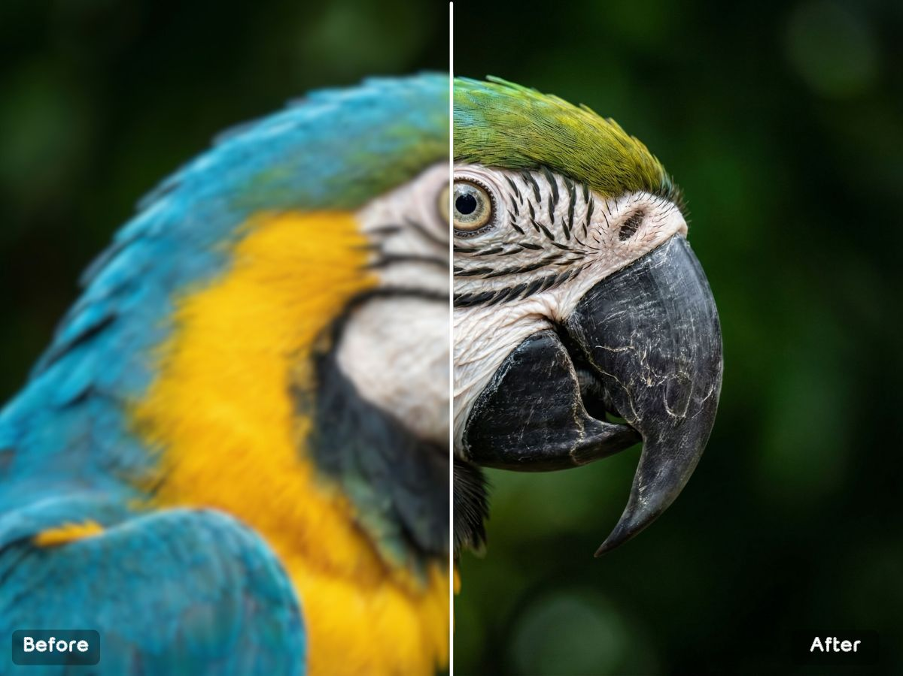
A smarter 2026 workflow is: first make your asset clearer using Free AI image upscaler, then update the message directly with edit image text online—so you’re editing the existing image instead of starting over.
Step 1: Upscale for Readability and Clean Edges
When images are small or heavily compressed, text edges turn fuzzy and tiny details fall apart. Upscaling first gives you cleaner structure, which makes text replacement look more believable and less “patched.”
Competitor Comparison: Upscalers
| Tool | Strength | Common Limitation | Why this workflow works |
| Topaz (desktop) | Strong results | Paid + install | Faster for rapid revisions |
| Upscayl | Free | Hardware-dependent | Web workflow avoids setup |
| Let’s Enhance | Convenient cloud | Credits/limits | Quick iteration loop |
| Photoshop resize | Precise sizing | No real detail recovery | AI improves clarity and edges |
| Mobile tools | Quick | Inconsistent quality | More stable output for repeat use |
Step 2: Edit Text Like It Was Always There
The real magic isn’t placing new text on top. It’s removing old letters, reconstructing the background texture, and matching style elements like color, rotation, and size—so the update looks native to the original design.
Competitor Comparison: Image Text Editing Workflows
| Tool | Strength | Common Limitation | Why AI text editing stands out |
| Photoshop | Full control | Slow and technical | Fast updates without complex steps |
| Canva | Template-friendly | Hard to match original fonts | Works directly on existing images |
| Pixlr/Fotor | Online editing | Blending can be inconsistent | Cleaner background reconstruction |
| Inpaint-style tools | Removes overlays | Doesn’t truly “replace text” | Built for real updates, not just removal |
| Outsourcing | Reliable quality | Slow turnaround | Instant revisions when deadlines hit |
3 Real Case Scenarios
- Flash sale updates (price changes)
Instead of redesigning, upscale the banner for crisp edges, replace the price, publish the new version fast. - Real estate flyers (status updates)
“For Sale” becomes “Sold” without rebuilding layouts—and the typography still looks consistent. - Cross-border e-commerce (translation)
Swap product labels from one language to another while keeping the original style intact.
3 Pro Tips
- Tip 1: Upscale first if the image is tiny.
Sharper edges make text replacement look dramatically more natural. - Tip 2: Keep new text length similar.
Extreme length changes can look cramped and “off,” even with AI. - Tip 3: Choose cleaner text areas when possible.
Busy textures are doable, but clean backgrounds blend the fastest.
Revisions don’t have to feel like a disaster anymore. When your workflow is built for speed, you stop panicking and start iterating. And honestly, that’s what modern creation looks like in 2026: fast, clean versioning—so you can keep moving while everyone else is still “opening the project file.”